


We have Discovered. We have Identified and Classified. We Have Added Custom Fields. Now, it’s Time to use Lansweeper to Ensure Compliance.
Right out of the box, Lansweeper provides hundreds of reports to help you learn the most about your IT environment. Add in the monthly Patch Tuesday Audit Reports, Zero-Day Audit Reports, and Risk Insights, and you have a lot at your fingertips to ensure asset compliance. BUT – we can go one step further and make custom compliance reports to ensure that your assets are indeed truly compliant to the baselines your business has established.
This Pro-Tip continues on the path that I use to ensure a successful (and useful) Lansweeper implementation – using criteria of your choosing to create a consolidated compliance report.
Today, we will be creating both an On-Prem and a Lansweeper Site compliance report, in the following simple format:
| Asset | Check 1 | Check 2 | Check 3 | etc… |
| AssetName1 | Yes/True | No/False | No/False | etc…. |
| AssetName2 | Yes/True | Yes/True | Yes/True | etc…. |
| AssetName3 | No/False | No/False | Yes/True | etc…. |
| AssetName4 | Yes/True | Yes/True | No/False | etc…. |
| AssetName5 | Yes/True | Yes/True | Yes/True | etc…. |
| AssetName6 | No/False | Yes/True | No/False | etc…. |
| AssetName7 | Yes/True | No/False | Yes/True | etc…. |
| AssetName8 | No/False | Yes/True | Yes/True | etc…. |
| AssetName9 | Yes/True | Yes/True | Yes/True | etc…. |
| AssetName10 | No/False | Yes/True | Yes/True | etc…. |
The SQL example below uses Conditional Joins with Correlated Subqueries. This approach is useful when you need to determine whether related records exist in other tables and then apply conditional logic based on that information:
SELECT
    NormalQuery.Field1,
    NormalQuery.Field2,
    CASE
        WHEN Check1.AssetID IS NOT NULL THEN 'Yes'
        ELSE 'No'
    END AS [Has Check 1],
    CASE
        WHEN Check2.AssetID IS NOT NULL THEN 'Yes'
        ELSE 'No'
    END AS [Has Check 2]
FROM
    NormalQuery
    LEFT JOIN (SELECT DISTINCT AssetID FROM QueryForCheck1 WHERE [criteria]) AS Check1
        ON NormalQuery.AssetID = Check1.AssetID
    LEFT JOIN (SELECT DISTINCT AssetID FROM QueryForCheck2 WHERE [criteria]) AS Check2
        ON NormalQuery.AssetID = Check2.AssetID
WHERE
    NormalQuery.[Something] = [criteria];
The above uses the following SQL Concepts/Features:
LEFT JOIN clauses. This allows you to see if there’s a match between the primary table and the subquery results.CASE statements to evaluate whether the joined field is NULL. This helps us determine if the related record exists and return a “Yes” or “No” accordingly.In a nutshell, follow these steps:
NormalQuery). This is your base query, which contains the primary data you want to work with.LEFT JOINs. These joins will connect your main table with subqueries that check for specific conditions. For example, join on AssetID to see if a related record exists.CASE statement to evaluate whether the joined field is NULL. If it’s not NULL, return “Yes” (indicating the record exists); otherwise, return “No”.Download the Example On-Premise Query
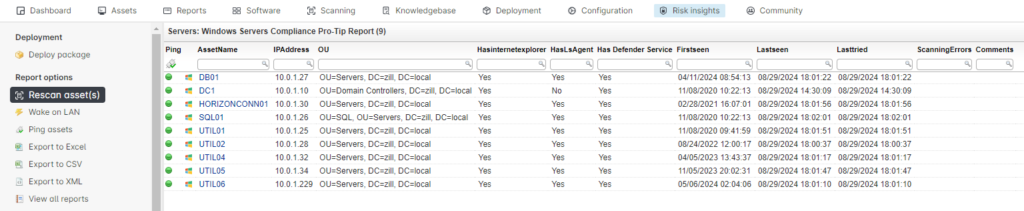
Here are some example ideas/use cases:
Example of a Simple Registry Key Check/Query (Make sure you add the registry key to scan in the on-prem scanning configuration):
Select Top 1000000 tblassets.AssetID,
  tblassets.AssetName,
  tblassets.Domain,
  tblregistry.Regkey,
  tblregistry.Valuename,
  tblregistry.Value,
  tblregistry.Lastchanged
From tblassets
  Inner Join tblregistry On tblassets.AssetID = tblregistry.AssetID
Where tblregistry.Regkey Like '%internet explorer' And tblassets.Assettype = -1
Order By tblassets.AssetName
Example of a Simple File Check/Query (Make sure you add the file information to scan in the on-prem scanning configuration):
Select Top (1000000) tblAssets.AssetID,
  tblAssets.AssetName,
  tblFileVersions.Found,
  tblFileVersions.FilePathfull,
  tblFileVersions.FileVersion,
  tblFileVersions.CompanyName,
  tblFileVersions.Filesize,
  tblFileVersions.Lastchanged
From tblAssets
  Inner Join tblFileVersions On tblAssets.AssetID = tblFileVersions.AssetID
Where tblFileVersions.FilePathfull Like '%iexplore.exe' And
  tblAssets.Assettype = -1
Order By tblAssets.AssetName
Example of a Simple Windows Service Check/Query:
Select Top (1000000) tblAssets.AssetID,
  tblAssets.AssetName,
  tblServices.Lastchanged,
  tblServicesUni.Name As Service,
  tblServices.started
From tblAssets
  Inner Join tblServices On tblAssets.AssetID = tblServices.AssetID
  Inner Join tblServicesUni On tblServices.ServiceuniqueID =
      tblServicesUni.ServiceuniqueID
  Inner Join tsysOS On tblAssets.OScode = tsysOS.OScode
Where tblServicesUni.Name = N'MSSQLSERVER'
Order By tblAssets.AssetNameTo do something similar in MongoDB, here’s what you’ll do:
$cond: Next, you’ll use the $cond operator to add some logic to your query. This is where you check if a certain value exists within an array or field. Use $in to see if the value is present, then have $cond return “Yes” or “No” based on that.check1Exists and check2Exists) that will show “Yes” if the value is found and “No” if it’s not.Using this approach, you can enhance your MongoDB documents with additional information, similar to how you would in SQL when checking for related records.
{
  "field1": 1,
  "field2": 1,
  "relatedField1": 1,
  "relatedField2": 1,
  "check1Exists": {
    "$cond": {
      "if": { "$in": ["<ValueToCheck1>", "$relatedField1"] },
      "then": "Yes",
      "else": "No"
    }
  },
  "check2Exists": {
    "$cond": {
      "if": { "$in": ["<ValueToCheck2>", "$relatedField2"] },
      "then": "Yes",
      "else": "No"
    }
  },
  "additionalField1": 1,
  "additionalField2": 1
}
Full Example:
Run the LS Sites Windows Compliance Pro-Tip Report
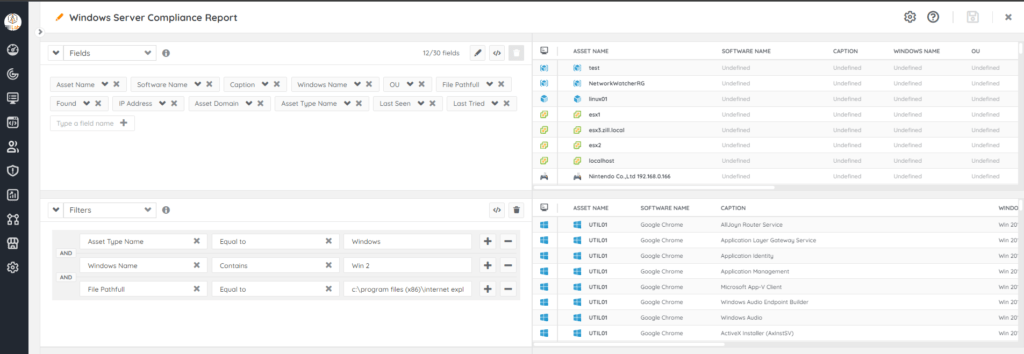
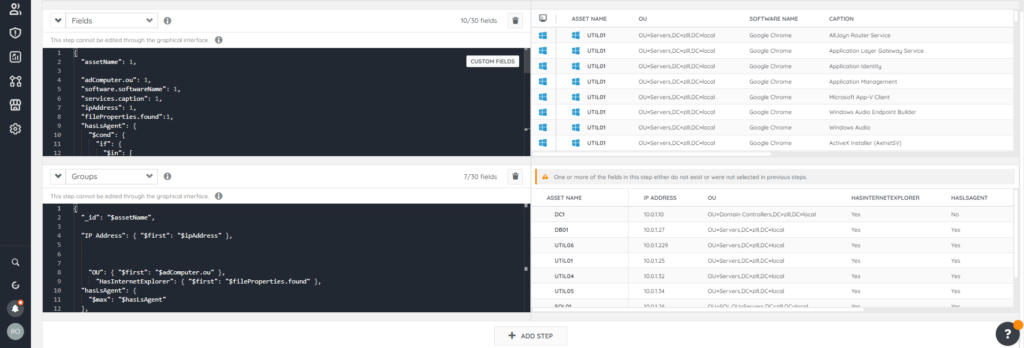
This MongoDB projection stage selects fields such as assetName, adComputer.ou, software.softwareName, services.caption, ipAddress, fileProperties.found, lastSeen, and lastTried. It also evaluates whether “LsAgent” is present in software.softwareName and “Windows Defender Antivirus Service” is in services.caption, setting the hasLsAgent and HasDefenderService fields to “Yes” or “No,” providing a comprehensive view of the asset’s key attributes, associated software, and services.
{
  "assetName": 1,
  "adComputer.ou": 1,
  "software.softwareName": 1,
  "services.caption": 1,
  "ipAddress": 1,
  "fileProperties.found":1,
  "hasLsAgent": {
    "$cond": {
      "if": {
        "$in": [
          "$software.softwareName",
          [
            "LsAgent"
          ]
        ]
      },
      "then": "Yes",
      "else": "No"
    }
  },
  "HasDefenderService": {
    "$cond": {
      "if": {
        "$in": [
          "$services.caption",
          [
            "Windows Defender Antivirus Service"
          ]
        ]
      },
      "then": "Yes",
      "else": "No"
    }
  },
    "lastSeen": 1,
    "lastTried": 1
}
Example Script Snippet for the GROUP Stage:
This aggregation is grouping by ‘assetName’ and then aggregating other fields within each group. It selects the first occurrence of some fields (‘IP Address’, ‘OU’, etc.), and computes the maximum value for others (‘hasLsAgent’, ‘HasDefenderService’).
{
  "_id": "$assetName",

  "IP Address": { "$first": "$ipAddress" },


    "OU": { "$first": "$adComputer.ou" },
      "HasInternetExplorer": { "$first": "$fileProperties.found" },
  "hasLsAgent": {
    "$max": "$hasLsAgent"
  },
  "HasDefenderService": {
    "$max": "$HasDefenderService"
  },
    "Last Seen": {"$first": "$lastSeen" },
    "Last Tried": { "$first": "$lastTried" }
}
The completed report looks like this:
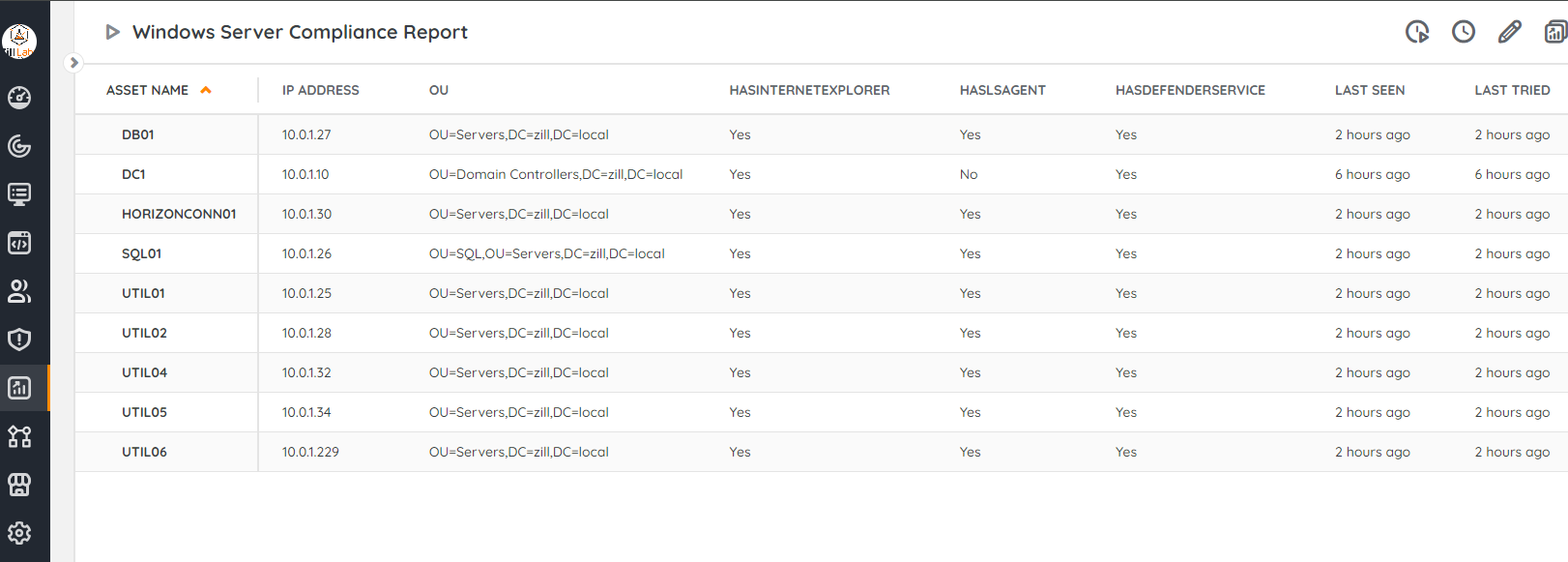
Whether you choose an on-prem SQL report or a Lansweeper Sites MongoDB report, making custom compliance reports extends the reporting power of Lansweeper to show you exactly what assets are (and are not) truly compliant with your company’s standards or baselines.
Personal Thoughts: I thought this exercise would be a lot more difficult using LS Sites’ MongoDB than what I’m used to using SQL reports for on-prem, but was pleasantly surprised at how easy it was, especially since you don’t have to worry about all of the table and query relationships and joins from the SQL relational database world. I must say, it feels pretty good to now be able to click the view/edit custom code button in the report builder and start typing away!
Sweep On, Everybody!
-Jacob
Explore Lansweeper for free.
No credit card required.


