
Derived fields have actually been in the product for a couple of months now since our Connect 2026 release but they haven’t been highlighted properly yet by me. Today I’ll go over what they are, where you can find them and what they can actually offer, from basic Yes/No fields to complex calculations.
For those who have been with Lansweeper for longer, you’ll know that many of our older more complex reports used the SQL Case statement. This was so that we could take existing data points and conditionally create a new datapoint based off the values those existing data points had. Whether it was a simple field in a report to indicate whether the device was a workstation or server, how many days were were remaining until and EOL or to do more complex calculations like the turning KB into GB and disk space calculations.
To provide similar capabilities for our new dashboards, we’ve added derived fields. These are per asset fields that only exist in analytic pages of Lansweeper and are dynamically calculated on each load using a expressions.
To get a full understanding I recommend taking a look at our derived fields documentation.
Derived fields run on Lansweeper’s own expression language think SQL-flavored, row-by-row logic, not a full scripting engine. You reference fields with square brackets like [Memory], [OS lifecycle stage], and from there you can do manipulations like arithmetic, string concatenation with ||, comparisons, LIKE/ILIKE for pattern matching, and IN for set membership.
If you want to do something conditional, If() handles the simple yes/no branches, and CASE WHEN … THEN … ELSE END can also be used for the more complex cases. There is a lot more too, but again its best to look at the documentation linked above.
The main limitation is that derived fields are strictly per-row. No aggregations across assets, no joins, and you can’t reference another derived field from within one, so if you’re trying to build something that needs cross-row math, FlowBuilder is what you want to look at instead. For everything else, reformatting a date, bucketing RAM into “High/Medium/Low,” building a one-line health status from five different fields, it’s a solid fit. Second to that is that for now, only Asset data fields are available, with others like software coming soon.
Creating derived fields can be done from a few places.
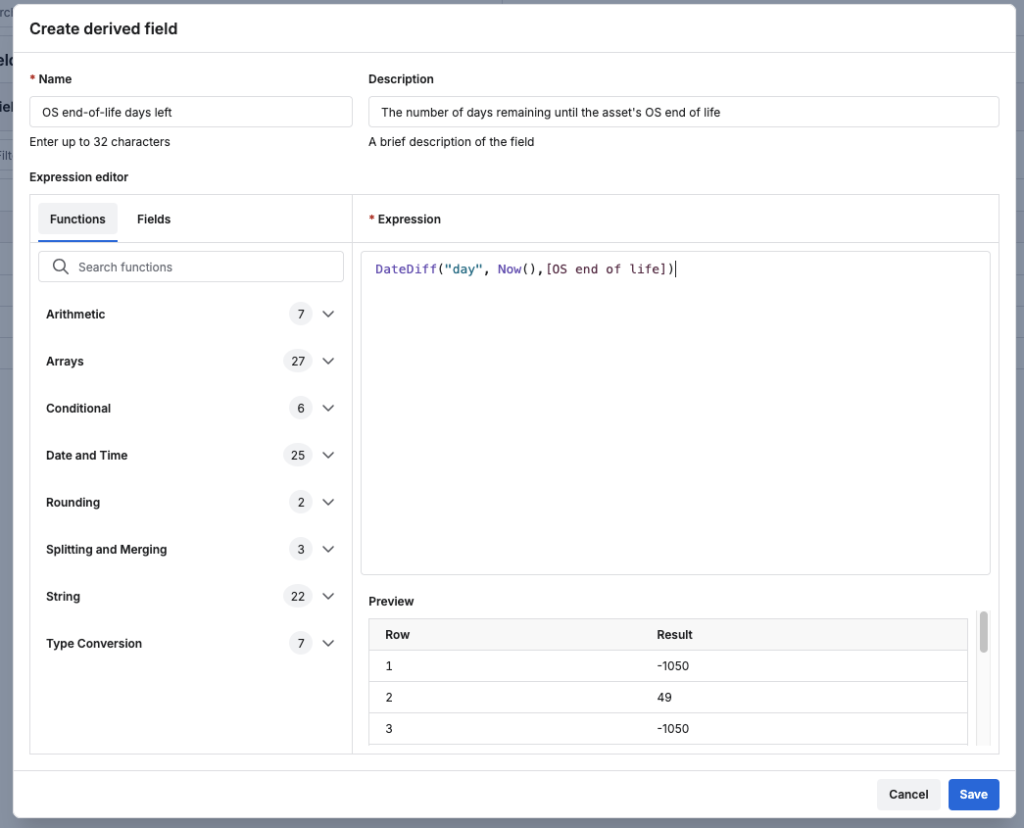
Once in the creation menu, provide a name, optional description and the expression you want to use.
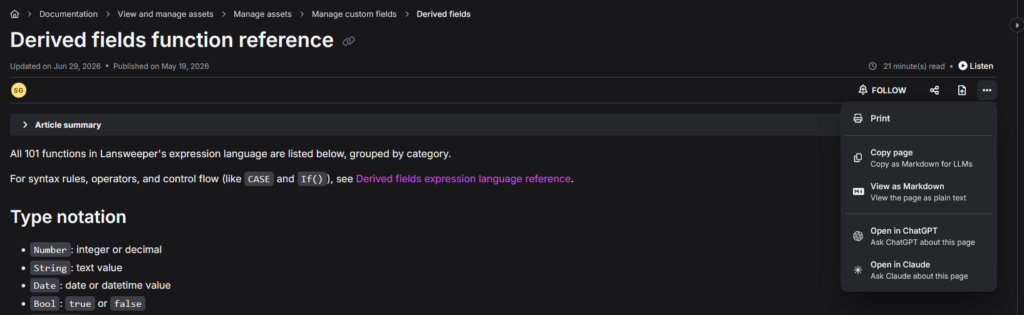
An extra tip here is if you have access to an AI tool, feed it our derived field documentation and ask it to create expressions for you. It might not get the field reference correct, but the logic should be solid. Every KB article has a markdown version now too, making it even easier to use with AI.
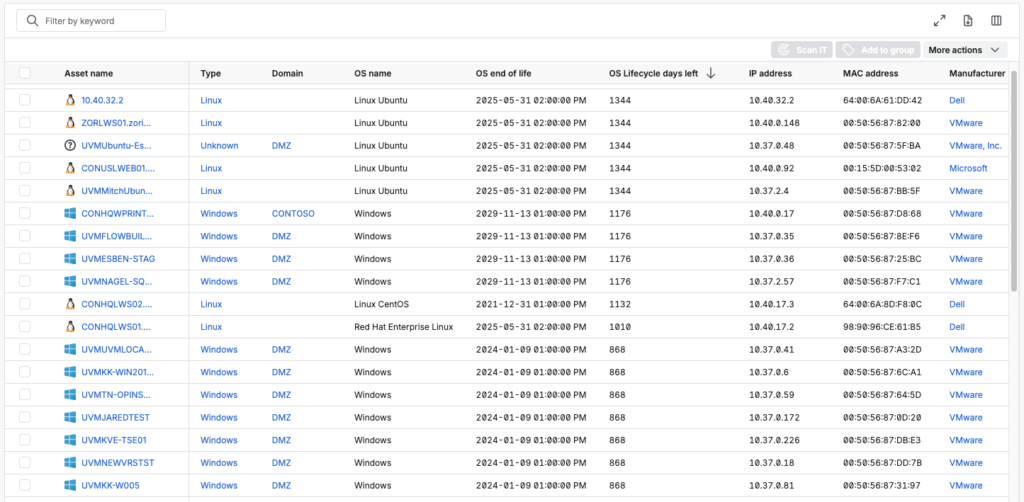
Once the derived field is saved, you can use it in both dashboards and custom views.
Lastly, let’s go over some useful ones I already created.
Lansweeper has multiple data points that are dates to keep an eye on. Whether its one of the multiple end of life dates or warranty. With a derived field you can easily turn it into a days remaining number that is easier to glance at and sort on.
DateDiff("day", Now(),[OS end of life])
Another date related derived field could be a date you calculate. For example when an asset should get decommissioned based off of when the asset was first created in Lansweeper. You can even customize this to be specific per asset type. This example takes 4 asset types and add a number of years to the created at date to calculate when the asset should get decommissioned.
CASE
  WHEN [Type] = "Windows" THEN AddYears([Created at], 3)
  WHEN [Type] = "Linux" THEN AddYears([Created at], 5)
  WHEN [Type] = "Apple Mac" THEN AddYears([Created at], 3)
  WHEN [Type] = "Switch" THEN AddYears([Created at], 6)
  ELSE null
END
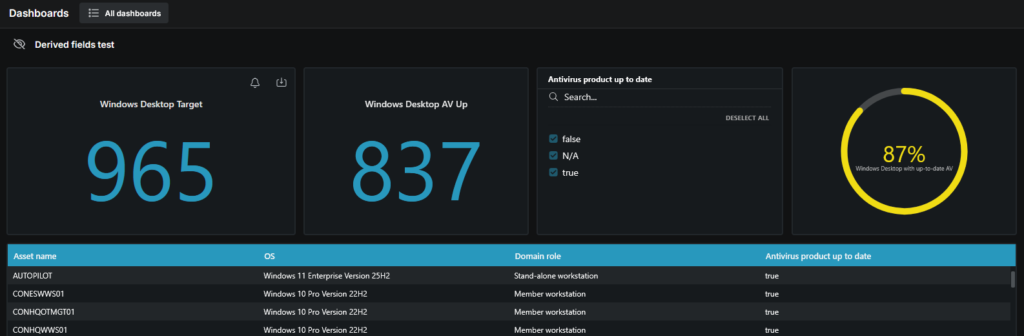
The Gauge widgets on dashboards can be really useful to display your progress towards a target. However, without derived fields its impossible to create a dynamic target. An example if this is how many of your workstations have an up-to-date Windows Defender?
For this we would two derived fields:
As a simple example I created a target of all Windows Desktop assets. And the current status being all Windows Desktop Assets with Defender being up-to-date. This can be used to many percent of my Windows desktop assets have Windows defender up-to-date.
CASE
  WHEN HasAny([Domain role], ["Stand-alone workstation", "Member workstation"]) THEN 1
  ELSE 0
END
CASE
  WHEN HasAny([Domain role], ["Stand-alone workstation", "Member workstation"])
    AND NotEmpty([Antivirus product up to date])
    AND ArrayAll(_ = true, [Antivirus product up to date])
  THEN 1
  ELSE 0
END
As part of our solutions released in our marketplace, we have even more examples of this in both the Intune Coverage & Policy Status dashboard and the Tenable Coverage dashboards, although these require workflows to be configured and run first.
The bigger point is that anything using derived fields you can create a dynamic target to chase or track so that in a split second you’ll see whether there is an issue you need to look at more closely or not.
Explore Lansweeper for free.
No credit card required.