
As AI tools are becoming more embedded in products and organizations, I’ve been working on ways to take what useful things it can do and put it inside of Lansweeper to enrich your assets with more context. This lets you use AI to analyze assets, and write back the result to the asset in a custom field, regardless what what kind of analysis, financial, security, infrastructure related, it doesn’t matter. As long as the AI model created it (and can create a webhooks) you can add it to your assets as context.
A few months ago, I created a pro tip about our MCP server, to allow AI tools to more easily take data from Lansweeper and use it. This is sort of a spiritual successor as today I will be covering a skill that can be used to take anything AI creates and ask it to push it into Lansweeper as a custom field using webhooks and FlowBuilder.
The AI skill is pretty straight forward, it only contains instructions to ensure the AI model knows how to format and send the webhook to ensure that when data comes in, the workflow can capture and use it correctly.
Additionally, it has logic added so it is aware of all the custom field option and properties like currency types, hyperlink options, value minimum and maximums and so on. This ensures that when you ask it to save a currency value, it should ask you what your preferred currency is instead of saving it as a number.
All of this combined, every webhook payload should be sent with the following structure with the necessary exceptions:
{
  "data": {
    "eventType": "CREATE_CUSTOM_FIELDS",
    "sentAt": "<current ISO timestamp>",
    "fields": [
      { "name": "Invoice Number", "type": "INPUT" },
      { "name": "Status", "type": "SELECT", "options": ["Open", "Closed", "Pending"] },
      { "name": "Due Date", "type": "DATE" },
      { "name": "Contract Value", "type": "CURRENCY", "currency": "USD" },
      { "name": "Vendor Portal", "type": "HYPERLINK", "linkTag": "https://vendor.example.com" },
      { "name": "Priority Score", "type": "NUMERIC", "min": 0, "max": 100 },
      { "name": "Notes", "type": "TEXTAREA" }
    ]
  }
}
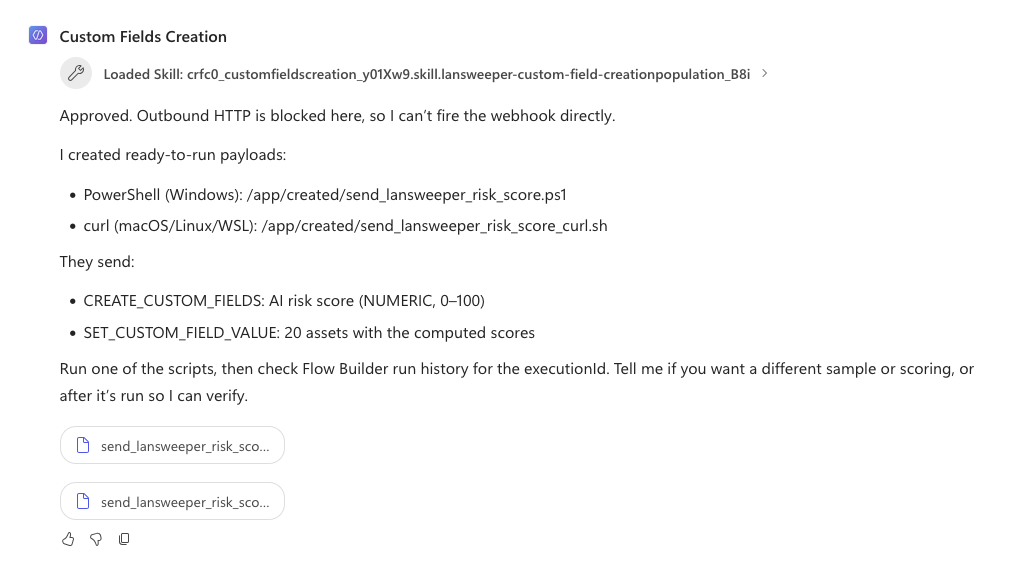
The most crucial part of this however is the ability to actually send webhooks. Something not all AI tools can do. So far all but Copilot can actually trigger the webhook themselves. Copilot should present some alternative options like providing a PowerShell script that contains all the info.
For this skill, you will need the Lansweeper MCP connected, we have instructions to do so in this knowledge base article. You can grab the AI skills for your preferred or available AI tools from this link:
Side note for Copilot. This is saved as a Solution, head over to Solutions in Copilot Studio to import it. Once added you will still have to add the Lansweeper MCP to the Agent.
The workflow is also rather simple. First off you can find it in the templates section of our marketplace under the name “AI Custom Field Creation/Population“.
Once you have the workflow, make sure to save it as a new version and Enable it. Once saved, you will find the webhook URL by clicking on the Trigger step, selecting the Test tab and opening the Webhook URLs dropdown.
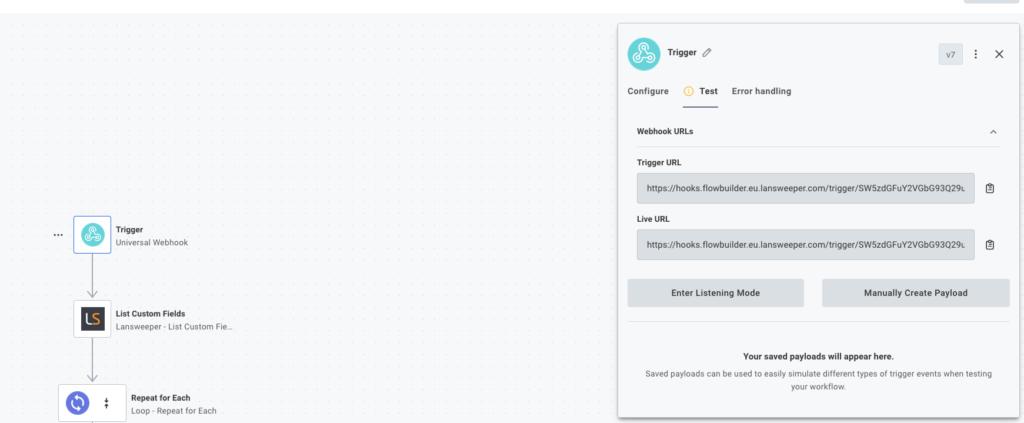
The Live URL is what is used by the workflow once its Enabled. The Trigger URL is used for testing and if used, the results will be shown in the Test Run History.
The rest of the workflow grabs the workflow data, interprets it and creates the custom field if required and edits the assets to populate the custom fields.
As a test I proved all AI clients/models with the following prompt:
Can you do a basic risk scoring on 20 randomly picked assets in Lansweeper from the site tst-esbenv2. Once you have done the risk score, create and populate a custom field for those assets called AI risk score with the value you calculated. Use this webhook endpoint: https://hooks.flowbuilder.eu.lansweeper.com/trigger/SW5zdGFuY2VGbG93Q29uZmlnOjk1ZTU5MDhm
This is just a simple test to get it to create some kind of value it can then create a custom field for and populate it for some assets. But this is just a very simple example. You can use this in combination with any skill you already have or might have in the future as long as the outcome is something you’d like to store with an asset in Lansweeper.
These could be estimated refresh budgets, business criticality, estimated annual energy cost, compliance framework coverage, risk score, whatever you choose to let AI calculate or create.
Below you can find the collection of AI results to the prompt above, obviously I couldn’t provide the entire response and all of them handled them all slightly different due to the basic prompt, but the important thing is that most of them (not you Copilot) were able to take the datapoint and get it into Lansweeper.
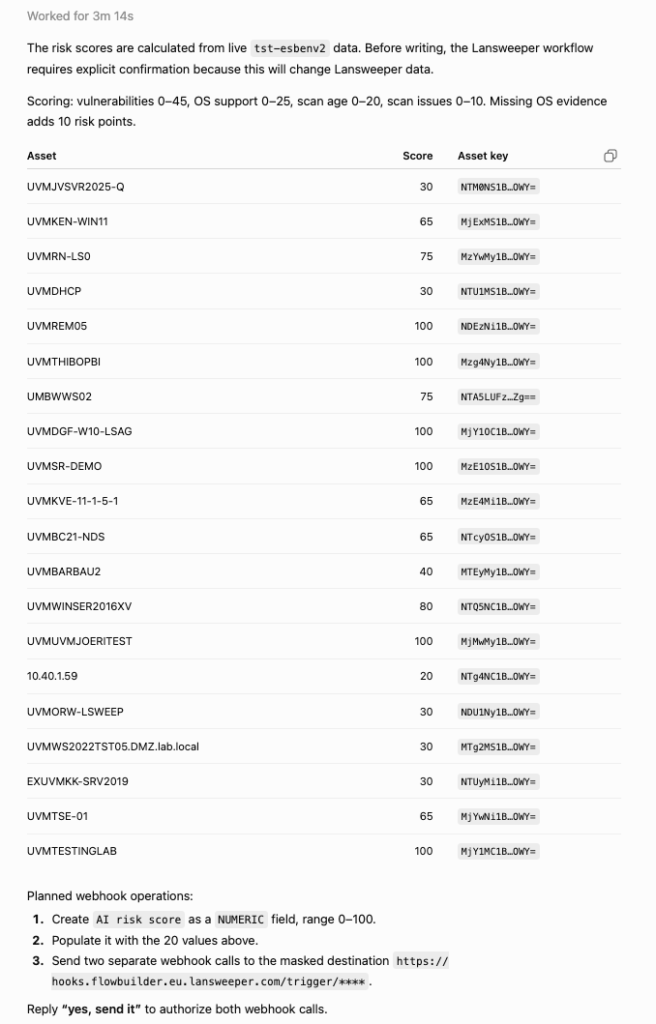
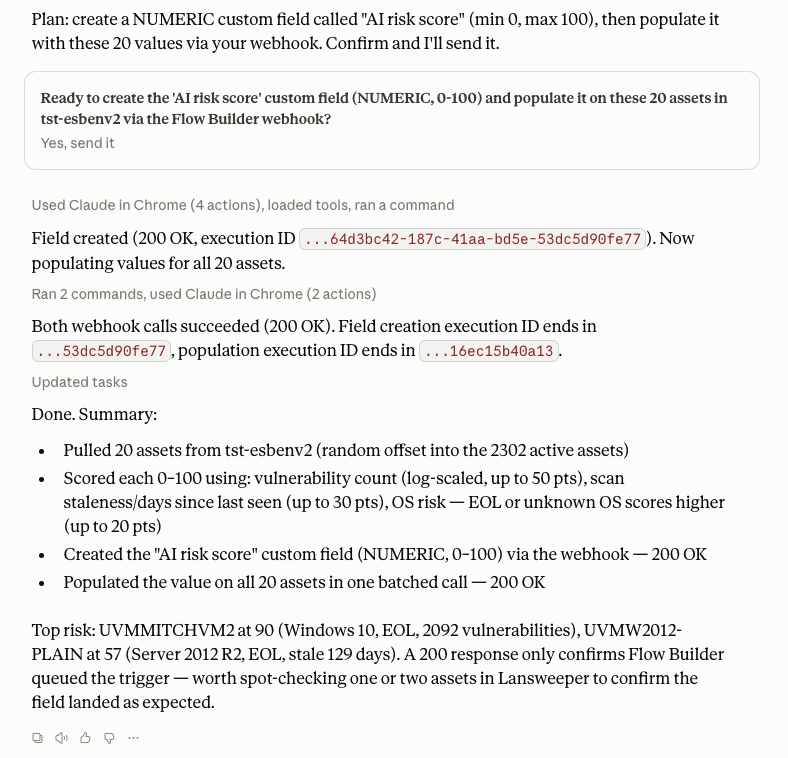
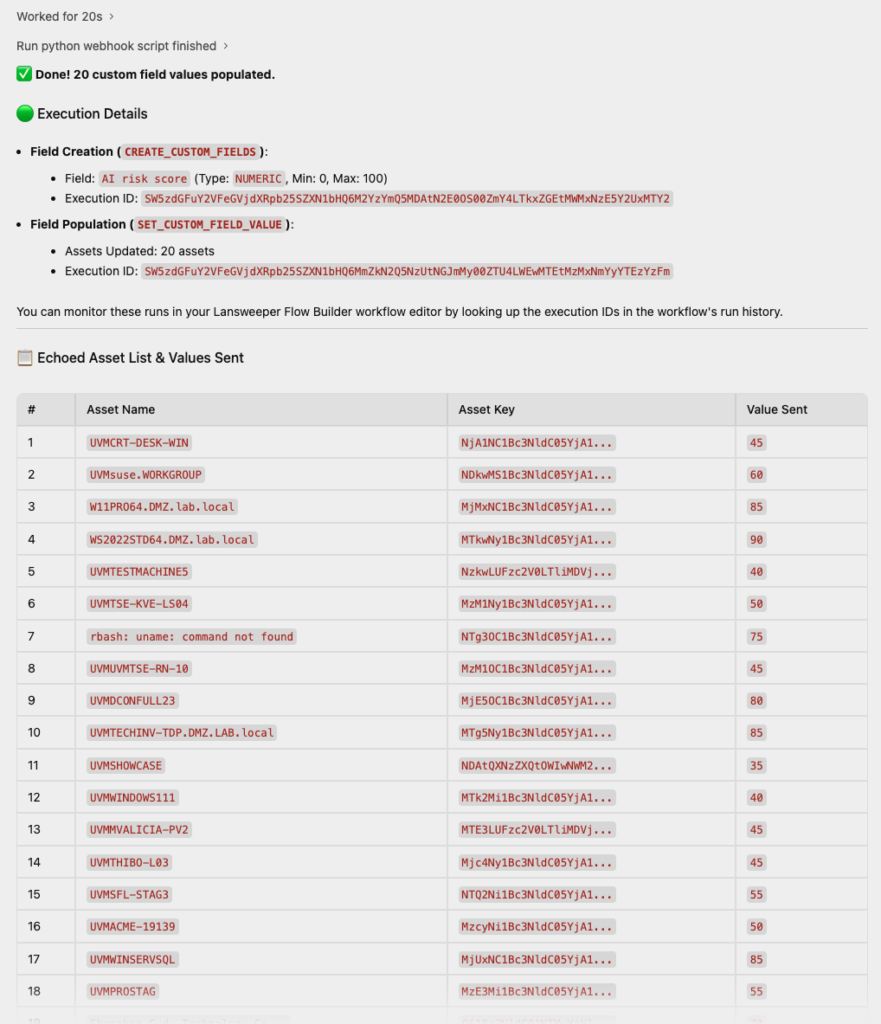
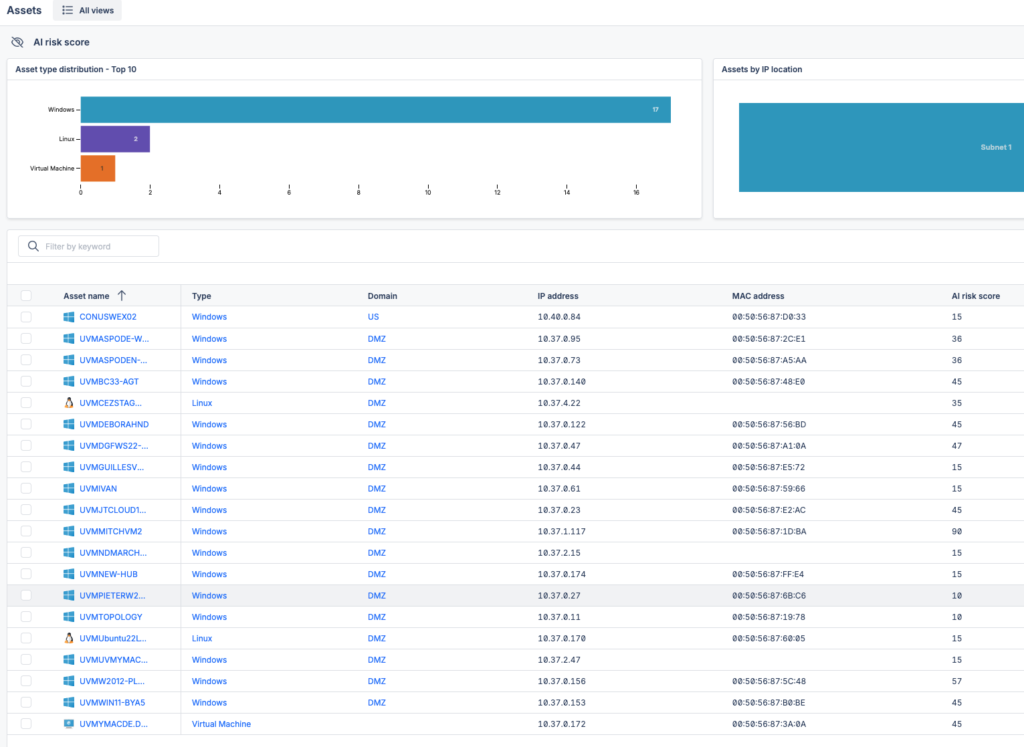
And inside of Lansweeper, you can use any of our analytic tools to report on it and use it to improve your processes or integrations with the rest of your tech stack.
Explore the full platform, free for 14 days.
No credit card required.