
Intune is arguably the most used device management platform, as such it only makes sense that the first solution we release utilizing our new features like Flow builder and the new dashboards is focused around that. So today we look at what additional data it can give you and what action you can automate in Intune.
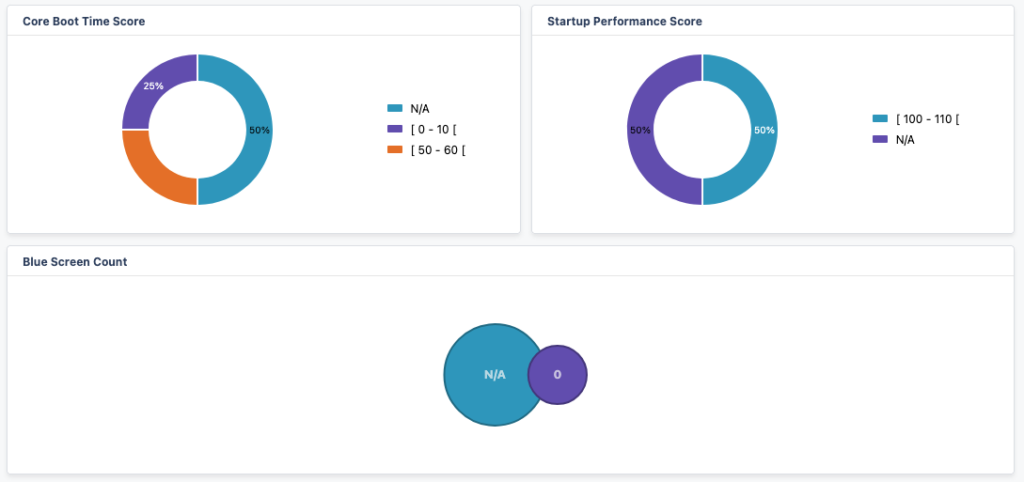
In this solution, we’ll retrieve the status of our Device Health Compliance Policy, the status of our Block USB Write Access Configuration Policy, and Core Boot Time, Blue Screen Count and Startup Performance Score from a device management report and also show how you can automate Intune to act on that data.
The best thing is that these are just examples, you’ll be able to define any Compliance Policy, Configuration Policy or Device Management Report fields that you would like to include in Lansweeper. All of it can be easily displayed in a dashboard so you can see and browse through these data points much easier compared to Intune.
On the Action side, you can let Lansweeper populate Intune groups for direct action or remediation or use one of the two new lifecycle related templates for when you are on/off-boarding employees, allowing you to delete or wipe Intune devices by just setting them to the correct state in Lansweeper.
The included templates are:
One main prerequisite is that you do need to scan Intune with Lanswepeer, as this already pulls in part of the data required to retrieve the rest and perform actions.
The “Add Additional Intune/EntraID Details” is a foundational workflow for our solution, it pulls device’s Intune ID and Entra Object ID which are often required for the other workflows. With these new data points, it also makes it easy to discover you own Intune coverage. Simply list all your endpoints and whether they have an Intune ID or not.
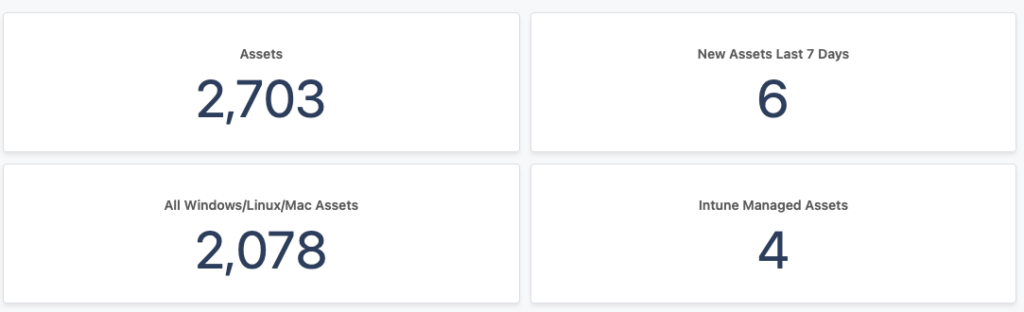
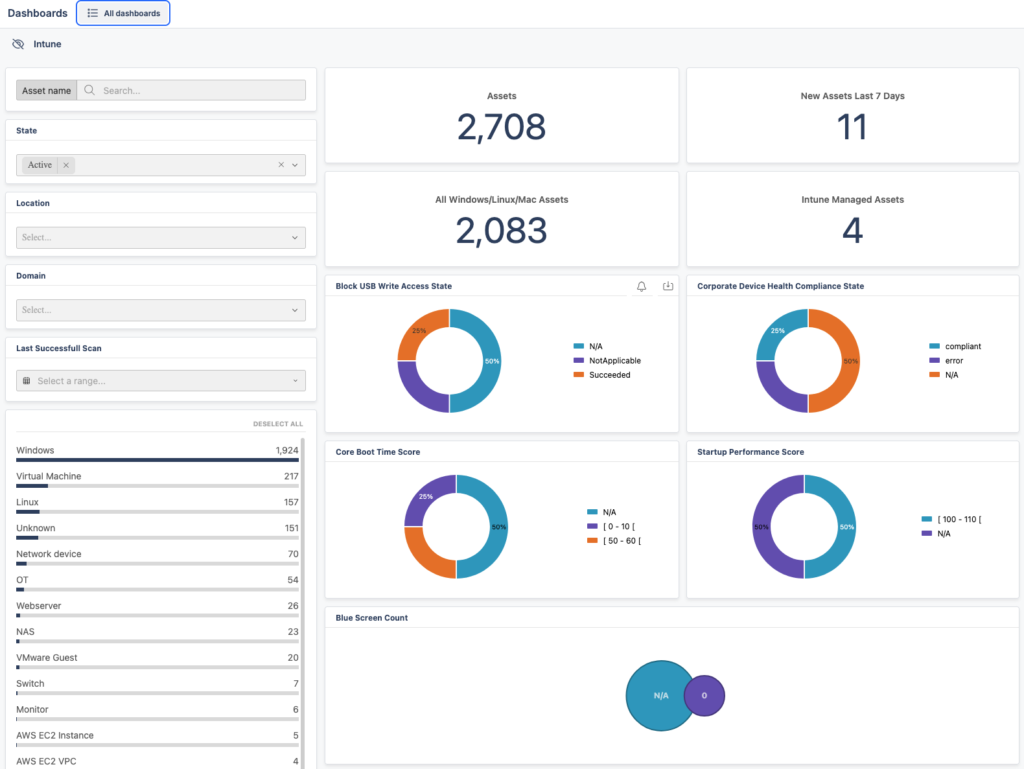
In the example below, we can see that the number of Intune Managed Assets is very low compared to the total of our Windows/Linux/Mac assets.
Compliance and Configuration Policies play a big part in how devices are configured and managed. It only makes sense to want to keep on eye on this in the same place you have the rest of your infrastructure. In the provided templates you’ll be able to enter the names of the policies you would like to track and as with any field you pull in, display them on a dashboard so you can more easily report on then and find where you need to spend time in resolving non-compliant or non-configured devices.
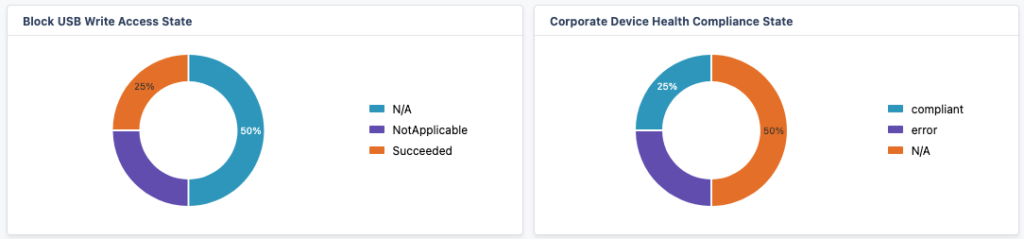
In this example, we have a Block USB Write Access Configuration, which, as the name suggests blocks USB write access so that employees don’t copy things from random USB drives they find on the parking lot.
We also have a Corporate Device Health Compliance Policy which enforces Secure Boot, BitLocker and more.
Device management reports are plenty in Intune, they provide data on all sorts of things like the performance data that we is used in the Intune Device Management Report Status template. You can find the full list of what reports Intune has in the Microsoft documentation.
Interestingly, sometimes the API version of the report will have more data fields than the visual version inside of Intune, an example of that is the Blue Screen Count data point.
Intune’s App deployment is probably one of the most used deployment tools, and as such, the “Intune Group Assignment for Software Deployment” workflow is great to automatically get your deployments triggered. Simply provide it the software you want to let it check for and it will automatically create and/or add those devices to an Intune group for you.
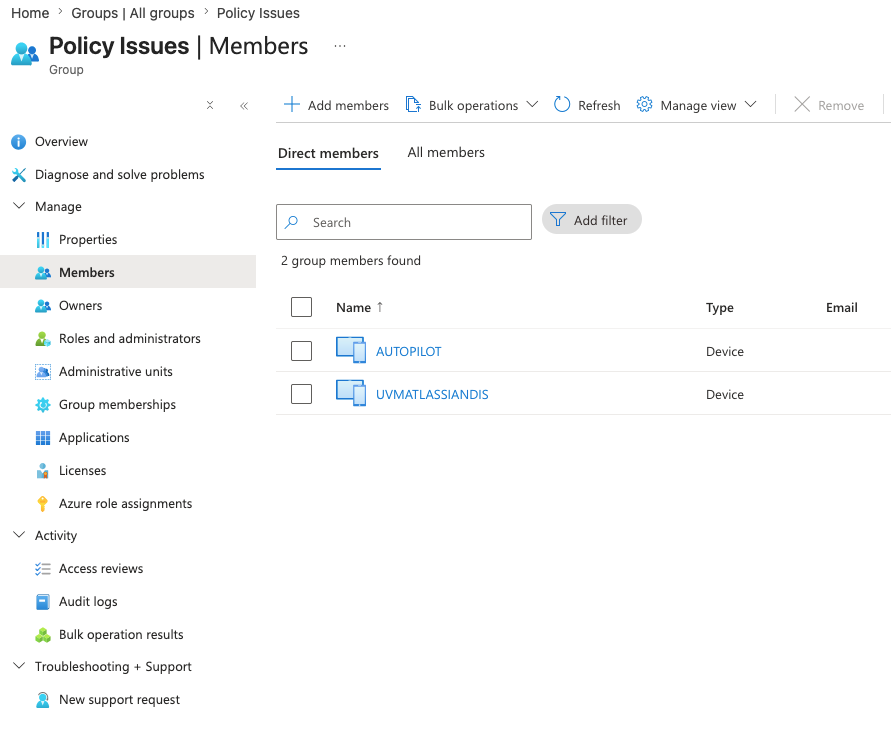
Additionally, this can also be used for script deployments, or really any group you need populating. For example, need to adjust something to get an asset to be compliant to your Corporate Device Health Compliance? Just use the “Intune Group Assignment for Policy Failure” template to push those assets in a specific group that triggers a script deployment to fix it.
Need to provide a new employee with a clean laptop? An employee being off-boarded and their laptop needs to go to stock? With the Delete and Wipe templates you can trigger either a Intune Delete or Wipe action automatically on a group of assets. For example, create a “Move to Stock” asset state, any time an employee is off-boarded, simply move their devices to the “Move to Stock“ state and the workflow will wipe trigger the wipe action on all devices in that state automatically.
If you want to take it to the next level, you could even look into automating the change of asset state.
If you combine it all together, it means you can pull the exact data points you want from Intune and you can display them in one or more dashboards to easily navigate and consult the status of your environment.
Know with a single click which assets are failing a compliance policy, combine multiple data points to prioritize even better. For example all assets that are failing both the compliance and configuration policy. Or find unmanaged assets all together! All of it without even having to navigate to Intune’s complex web interface.
Explore the full platform, free for 14 days.
No credit card required.