
Secure Boot is vital for modern security standards in IT environments, but it wouldn’t be a Microsoft product is there wasn’t a catch. The certificates used to establish trust gate were introduced in 2011, and were given a 5-year lifetime. This means that these certificates are expiring this year. If expired, Windows will no longer be eligible to receive security fixes for the Windows boot manager or Secure Boot itself.
Microsoft has a complete in-depth article on all the ways you can update these certificates.
Today I’ll be covering the first three options and provide some additional resources you can use in Lansweeper to make your upgrade process easier. For pretty much all of these resources, unfortunately, at the time of publishing a hybrid (or classic) installation of Lansweeper will be required.
Microsoft includes into their article the importance of having an overview of devices in your environment, and ensuring you utilize that info to create a representative test group to perform updates on. Instead of using Microsoft’s suggested registry keys or PowerShell scripts, Lansweeper already has this information. So I’ve created a report that includes all the information they suggest collecting.
Secure Boot Certificate Updates Asset Overview Audit
Before we get into the ways to update, Microsoft added additional events in Windows that you can use to track and confirm application of the updates. All of them are listed in this Microsoft article, but the two key ones are 1801 and 1808.
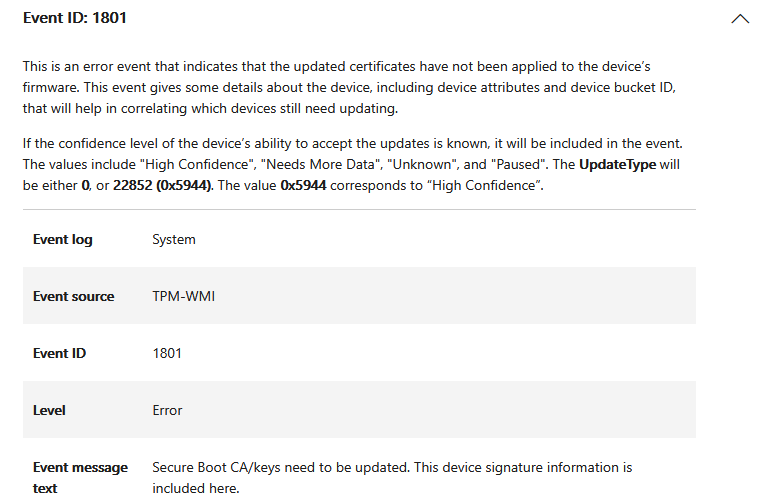
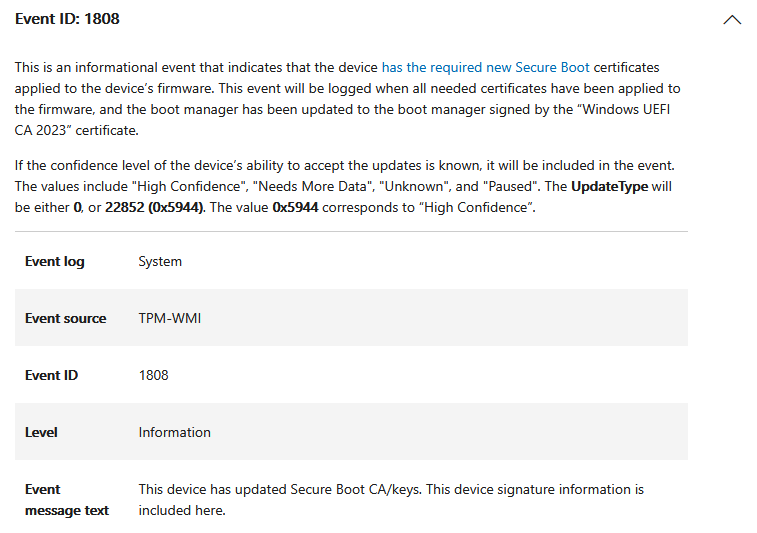
Here are two reports you can use to look report on all devices that have these events. It is important that for event 1808 you enable scanning informational events in your Lansweeper configuration first!
Windows Event 1801 & 1808 Audit
The easiest method is with with Microsoft-managed updates. If you are using Microsoft-managed updates all you need to do is verify the following:
Luckily checking if secure boot is enabled is relatively easy in Lansweeper, all you need to do is configure the following registry key scan:
Rootkey: HKEY_LOCAL_MACHINE
Regpath: SYSTEM\CurrentControlSet\Control\SecureBoot\State
Regvalue: UEFISecureBootEnabled
Once that is set up, you can run the following report to check the Secure Boot status of your Windows devices.
The second method Microsoft provides is by updating and monitoring registry keys.
Rootkey: HKEY_LOCAL_MACHINE
Regpath: SYSTEM\CurrentControlSet\Control\SecureBoot
Regvalues: AvailableUpdates, HighConfidenceOptOut, MicrosoftUpdateManagedOptIn
Rootkey: HKEY_LOCAL_MACHINE
Regpath: SYSTEM\CurrentControlSet\Control\SecureBoot\Servicing
Regvalues: UEFICA2023Status, UEFICA2023Error, WindowsUEFICA2023Capable
Just like before, you can utilize Lansweeper to scan all these registry keys and values, and using the reports below, you can get an overview of them per key. Obviously you can adjust these reports to your liking or use them as a starting point if you want to create a report per registry value.
Secure Boot Registry Key Audit
Secure Boot Servicing Registry Key Audit
The GPO method presumable doesn’t do much different from the registry key method, aside from making it easier to to configure them since the GPO will presumably just do that.
This policy can be found under the following path in the Group Policy UI:
This mean the resources shared above can also be used to monitor the progress of devices that are being updated with the GPO method. One additional value to monitor is the following one which is created when the GPO is applied.
Rootkey: HKEY_LOCAL_MACHINE
Regpath: SYSTEM\CurrentControlSet\Control\SecureBoot
Regvalues: AvailableUpdatesPolicy
I hope these resources help with managing the updates of the certificates in your environment and if you want me to cover the Intune method with some automations, let me know and we can dive into automatically assigning your devices to an Intune group that triggers the certificate deployment next time.
Explore the full platform, free for 14 days.
No credit card required.