

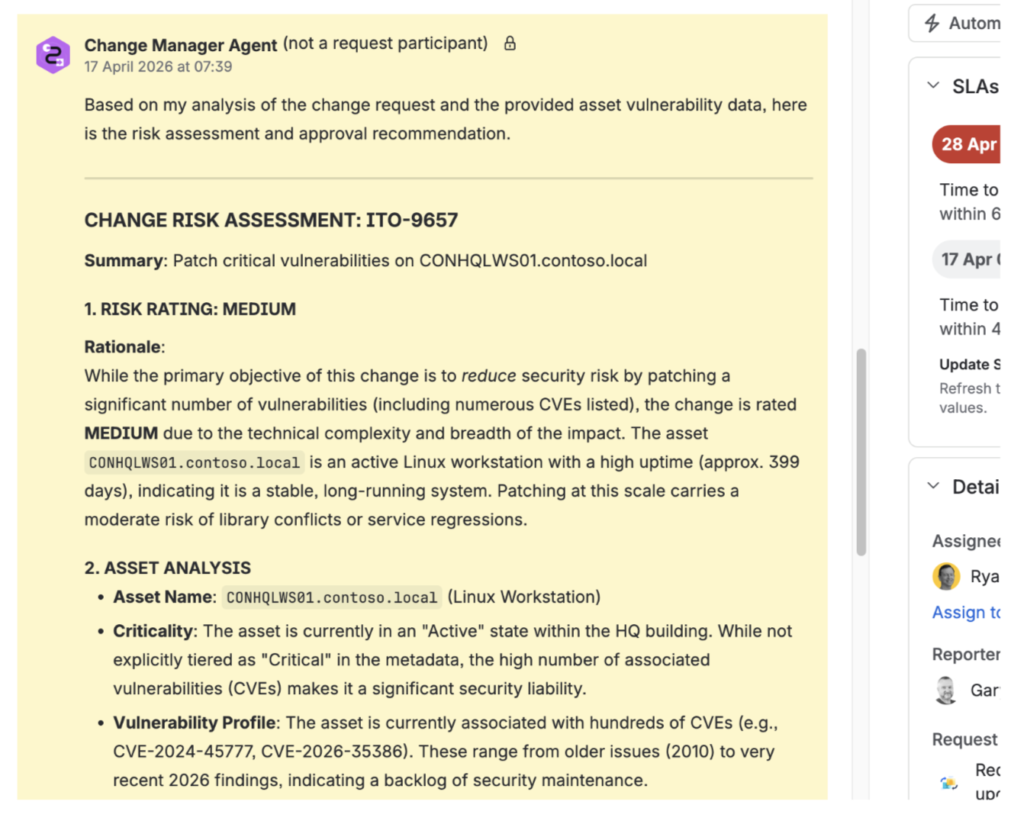
The Change Manager Agent takes a Jira change request and produces a complete risk assessment end-to-end. It reads the change ticket, looks up the linked asset in Lansweeper, checks its vulnerability and software data, and rates the change LOW, MEDIUM, HIGH or CRITICAL against a fixed set of criteria. It then recommends approve, defer or escalate to CAB, and — with the user’s confirmation — posts the assessment as a comment on the ticket and applies a CAB review label where needed.
The agent works inside a live chat, so a change manager can ask follow-up questions, request a re-assessment after the ticket changes, or dig into a specific CVE.
Lansweeper MCP
https://mcp.lansweeper.com/mcp
LLM
Claude 3.5+ — via Rovo (Atlassian’s agent platform runs on Claude models) and via the standalone Claude skill build
Atlassian Rovo, designed to work with any ITSM tool connected via MCP (Jira Service Management, ServiceNow, Freshservice)
Lansweeper plan
Starter, Pro, Enterprise
Claude skill — core risk assessment logic
standard instruction – site confirmation, query catalog, active-asset filtering
This agent is available on two platforms: Atlassian Rovo and Claude. Steps 1 to 3 are the same shape everywhere; the platform-specific detail is called out where the steps diverge. Follow the column for your platform.
Step 1 — Download
Download the agent package from the location in section 6 below, or ask your Lansweeper contact for the current build.
Step 2 — Open your agent platform
Step 3 — Load the instructions
Step 4 — Connect Lansweeper
Authenticate the Lansweeper MCP connection (EU or US endpoint, as required) and confirm you can see your site list. Both platforms need this step; only the connection method in each platform’s settings differs.
Step 5 — Connect your ITSM tool
Connect the Jira MCP. Confirm the agent can read a test change ticket before using it live.
Step 6 — First-run configuration (Claude skill only)
The Claude skill asks for four values on first use: your ITSM platform name, what your organization calls a change ticket, your CAB escalation label, and which connected MCP to use for your ITSM tool. The Rovo version has these values built into the instructions, so this step does not apply to it.
Step 7 — Run a test assessment
Paste a real (or test) change ticket key and ask for a risk assessment. Confirm the agent produces all five sections of the output format and does not fabricate any asset or CVE data.