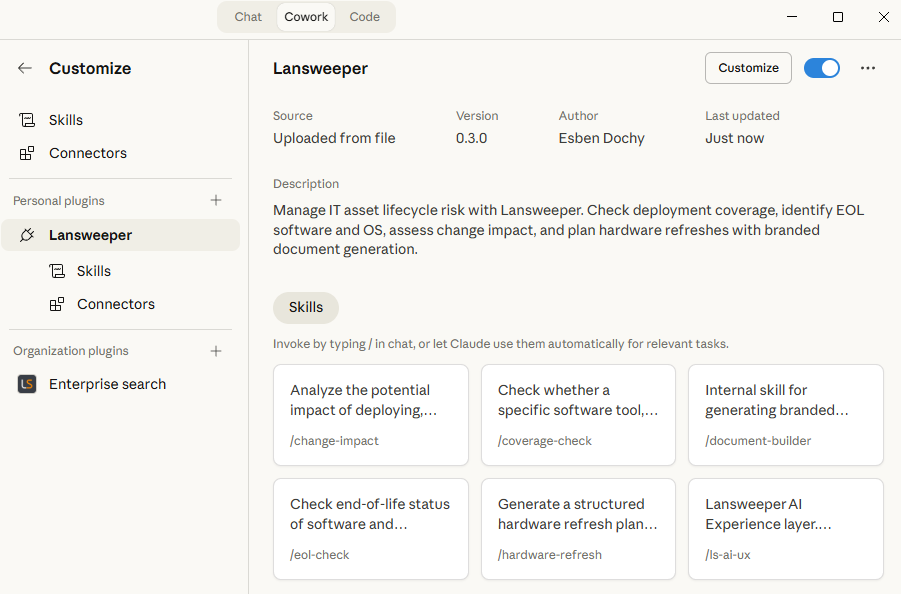
Connect Lansweeper cyber asset intelligence to Claude Cowork to run coverage checks, EOL audits, change impact analyses, and hardware refresh plans using natural language.
Download the plugin for your platform. Select Claude, Gemini (Antigravity), or Rovo.
Step 2 — Open your agent platform
Claude: Open Claude Desktop or Claude Cowork on your machine.
Gemini (Antigravity): Open Google Antigravity and navigate to your workspace.
Rovo: Open Atlassian Rovo from your Atlassian site and go to Agents.
Step 3 — Load the instructions
Claude: Go to Settings > Plugins and upload the .zip as a personal or organization plugin. No manual paste needed.
Gemini (Antigravity): Load the Gemini .zip into your Antigravity environment using Google’s standard plugin installation flow. The rules/ls-ai-ux.md file applies automatically to all skills once loaded.
Rovo: Create a new agent, paste the contents of the Rovo instruction file into the agent’s instructions field, then connect the Lansweeper MCP.
Step 4 — Connect the Lansweeper MCP All four skills query Lansweeper directly — no connection means no real data. Authenticate the Lansweeper MCP (https://mcp.lansweeper.com/mcp) and confirm the agent can retrieve your site list. All platforms require this step; only the connector settings location differs per platform.
Claude: Navigate to the plugin’s Connectors tab, install the Lansweeper MCP connector, then click Connect and sign in with your Lansweeper Sites account.
Gemini (Antigravity): Configure the MCP endpoint in the plugin’s connector settings and sign in via OAuth. Also confirm outbound web access is enabled — the EOL Check skill uses the endoflife.date API as a fallback.
Rovo: Connect the Lansweeper MCP through Rovo’s connector settings and sign in with your Lansweeper Sites account.
Step 5 — Ask
Claude: “Is CrowdStrike installed on all our servers?”
Gemini (Antigravity): “Which devices are running end-of-life operating systems?”
Rovo: “Build me a hardware refresh plan for all laptops over 4 years old.”