So, you’ve set up the Lansweeper JSM Assets integration and now your Jira Service Management Assets schema is populated with discovered inventory from Lansweeper. Great start! But here’s the exciting part, your asset schema doesn’t have to stop where Lansweeper ends.
One of the most under looked things you can do next is add your own custom attributes directly in JSM Assets without touching your Lansweeper configuration. This opens up new workflows, better reporting, and automation tailored to your organization’s needs.
Why Add Attributes to Jira Assets Object Types Instead of Lansweeper?
It’s true that Lansweeper allows you to create custom fields on assets and those can be valuable when you want to maintain custom metadata in Lansweeper. But when your goal is to power ITSM workflows, service portal experiences, or automation in Jira, it’s often more effective to define those attributes within Jira’s Assets ObjectTypes instead.
Here’s why:
More Control Over Service Management Workflows
Jira’s Assets schema data can be the driver for workflows, approvals, and request routing. Adding custom attributes in JSM (instead of Lansweeper) means:
- You can control how the data appears to portal users and agents
- You can use those attributes in automation rules and custom field logic
- You’re not altering Lansweeper’s source data or affecting your scans
Separation of Operational vs. ITSM Administrative Data
Lansweeper should remain your source of technical information/data focusing on device specs, install date, etc. JSM Assets is the layer where contextual metadata can live. Attributes can be used to understand if an asset is related to or supporting a business service or if it is visible in the software request catalog.
Enable Better Reporting and Governance
By extending your schema in JSM, you gain access to advanced filtering, reporting, and governance tied to your business logic. Want to show only assets that are “requestable”, you can use an attribute. Want to group software by business unit or license type? You can use an attribute for that too. By now I bet you are thinking of your own ideas of how to use attributes to further enrich your lansweeper JSM Assets Schema!
A Real World Use Case: Building a Requestable Software Catalog in JSM
Let’s say you want to expose a list of company approved software to end users through the JSM portal. But not all software should be requestable . Some are licensed per machine, others are for IT use only, and a few are under strict controls.
This is where a simple, custom attribute makes a big impact. Let’s see how easy it is to configure this scenario
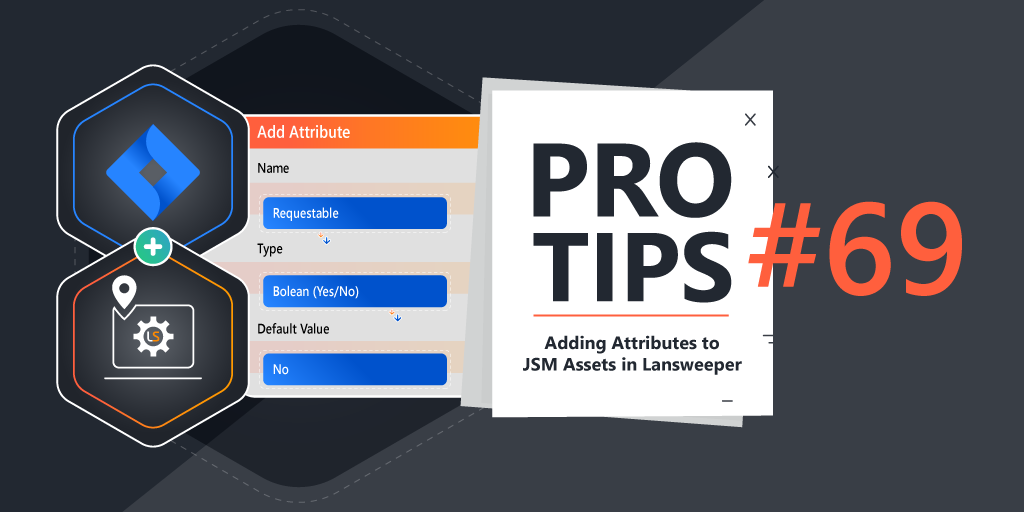
Step 1 Add a “Requestable” Attribute to your Software Object Type
Navigate to Assets → Object Schema and select your Lansweeper Software object type (you may have named it “Software,” “Installed Applications,” or similar, depending on your import). Then, add a new attribute:
Default Value: No
Name: Requestable
Type: Boolean (Yes/No)
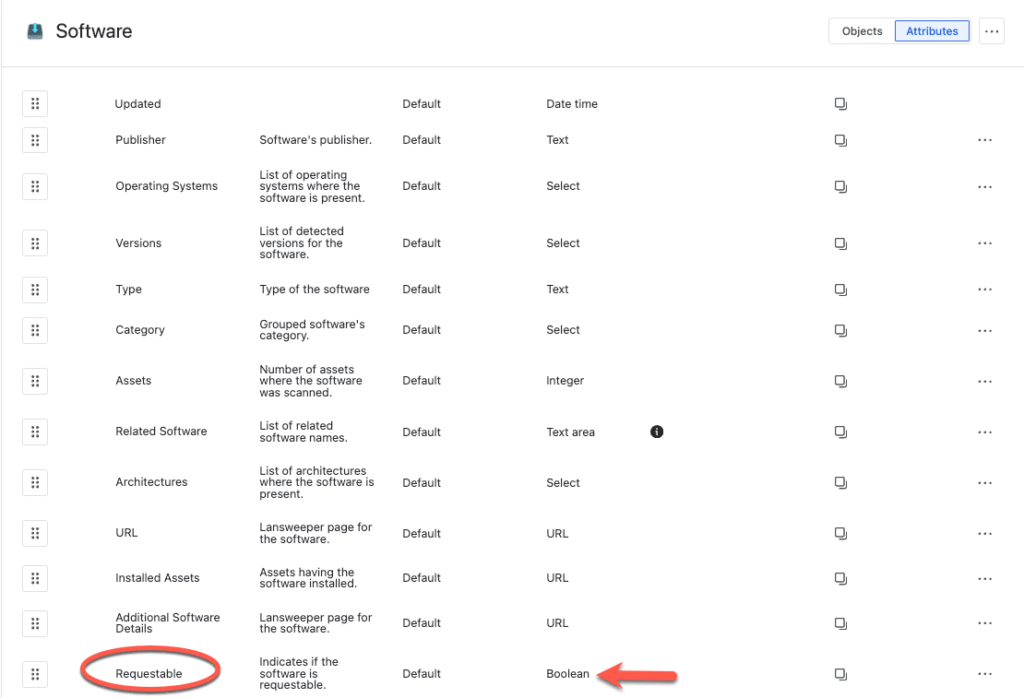
You’ve now defined a way to flag whether a software title should be visible in the service catalog or request forms.
Step 2 Populate Values for Relevant Software
Next, review your software objects in JSM Assets. Check the ones that should be made available for request by end users in the JSM HelpCenter. These will probably include software objects like Zoom, Chrome, Notepad++, etc. Inside each object that you would like to be accessible to request mark as “Requestable = Yes.” Leave others set to NULL (Note: you don’t have to mark the others as No, leaving them NULL will be sufficient)

By using this approach you haven’t changed anything in Lansweeper. You’re simply layering additional business context in Jira Assets.
Step 3 Use the Attribute to Populate the correct Software Titles in your JSM Request Type.
Now that “Requestable” attribute exists and you have some objects where this attribute is marked as “yes”, you can build a Jira Custom Field that only displays software Titles that are elligable for request. If you aren’t sure how to build custom fields in Jira that populate with specific asset data please review our previous pro tip on the topic: https://www.lansweeper.com/blog/pro-tips/populating-atlassian-jira-custom-fields-with-your-lansweeper-assets-schema-data/
In this example I’ve created a Assets Object Custom Field Type and configured it to only show Software Objects that have the “Requestable” attribute marked as “True”
Object Schema [Select the Lansweeper Asset Schema]
objectType = "Software" and "Requestable" = true

This approach is scalable, simple, and easy for admins to maintain, without touching Lansweeper’s configuration.
Other Attribute Ideas that Belong in Jira (Not Lansweeper)
Here are a few more attribute examples that make sense to define directly in JSM Assets:
| Attribute | Purpose |
|---|---|
| Service Catalog Visibility (The above example) | Marks whether an asset appears in a request form |
| Default Approver | associates an approver for changes to the asset, can be a business owner, manager, or even a Team defined in Assets |
| Business Impact | Defines asset criticality for prioritizing incidents |
| Internal Notes | Stores internal only context or support guidelines. Can also be a link to runbook/playbook in Confluence |
These kinds of attributes are ITSM specific and not something Lansweeper should manage or sync. Keeping them in Jira Assets allows teams to evolve workflows independently of discovery infrastructure.
Your Schema, Your Rules
The real value of syncing Lansweeper to Jira Service Management isn’t just having better asset data, it’s using that data to power better decisions, faster service, and more consistent processes.
Adding custom attributes in your JSM Assets Object Types gives you the flexibility to adapt Lansweeper’s technical foundation to your unique operational needs. Whether you’re building a software catalog, driving smarter automation, or simply organizing your CMDB for clarity JSM Assets gives you the tools to tailor your schema to fit.