
Intune Automations
Pro Tips #64
Introduction
Continuing the Journey of Asset Compliance – with Flow Builder, Custom Fields, and inTune integration.
Everyone knows that Lansweeper excels in providing valuable insights and enriching any other system that it integrates with… but not too many know that you can import information from other systems – making Lansweeper a powerhouse for true IT Asset Management. In other words:
The more data you GIVE Lansweeper, the more powerful it becomes.
I love setting up Lansweeper in an environment – using it’s unmatched device recognition and scanning, and having everything accounted for and properly classified… but the part that I enjoy the most, is integrating with other systems – and taking a few key points of data from each of them. What does that give me? A true (if not cliche) single point of glass for asset management and compliance.
In the past, this was pretty complicated, and caused many-a-sysadmin countless headaches – but now, with the introduction of Lansweeper’s Flow Builder, things have just gotten much, much easier! For Beta access, sign up now at https://www.lansweeper.com/product/beta/
In this article, we will use Flow Builder to get asset information from inTune , and write to custom fields for applicable assets – and you will be able to apply this methodology to practically any other system that has an API to take your compliance to a whole new level.
From this integration – you will now know:
- What Windows Assets are enrolled in inTune
- What Windows Assets are NOT enrolled in inTune
- The Compliance Status of the Endpoint
- The Last Time the Endpoint Synced with inTune
- The IntuneID for Each Intune Managed Windows Endpoint
- The AzureAD ID for Each Intune Managed Windows Endpoint
- How to Use a Code Block to Perform a Smarter Asset Match
- How to Apply this Concept to Any Other API Integration to Suit Your Needs!
This article is the first step – grabbing the info. The next article in this series will be to take the information we gathered, and use it to our advantage – enhancing Intune groups to be targeted and dynamic, to get the most out of your deployments and security configurations.
I’m going to go ahead and sign-off up here because the below walkthrough is long – Remember: Lansweeper gets even stronger when you take in data from other systems. With Flow Builder, you can now easily make that happen.
-Happy Sweeping, Everyone! -Jacob
Walkthrough
What You’ll Need First
Before you begin, make sure you have:
The YAML File to Import
If you would like to skip making the workflow from scratch, you can download and import the file here:
Azure App Registration
To use the Microsoft Intune Connector, you’ll need to register an app in Azure and assign Microsoft Graph API permissions that allow reading and optionally modifying device data (we will need to modify data in the next article where we modify groups). Official instructions can be found here: https://flowbuilder-lansweeper.document360.io/docs/microsoft-intune
Lansweeper Custom Fields for Intune Data
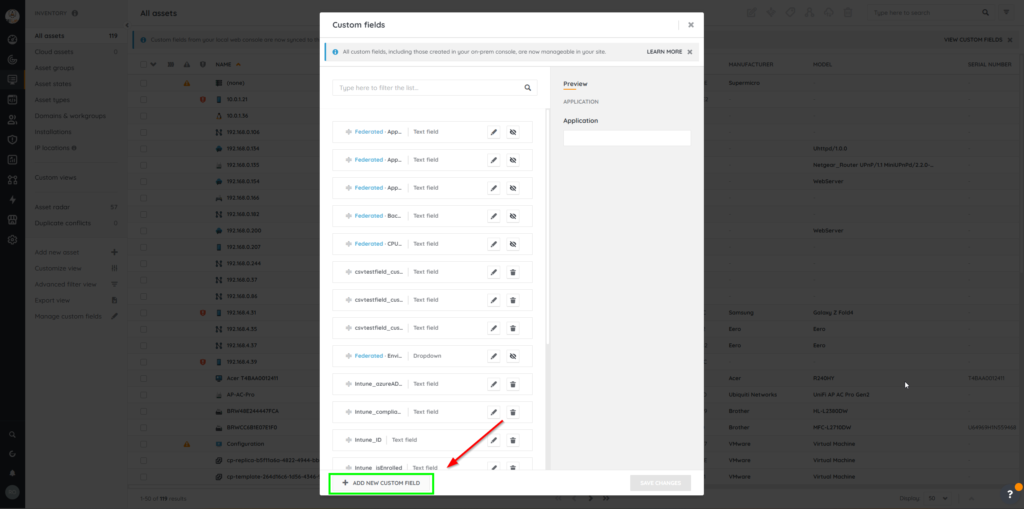
The following custom fields need to be created:
- Intune_ID (Text)
- Intune_isEnrolled (Text)
- Intune_lastSyncDateTime (Text)
- Intune_complianceState (Text)
- Intune_azureADDeviceId (Text)
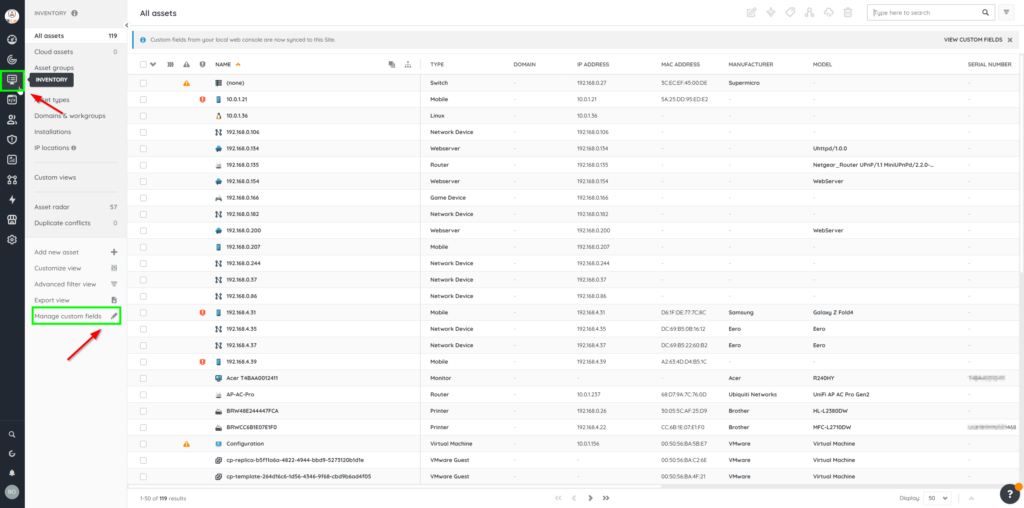
In Lansweeper Sites: Navigate to Inventory > Manage Custom Fields
Create A New Workflow
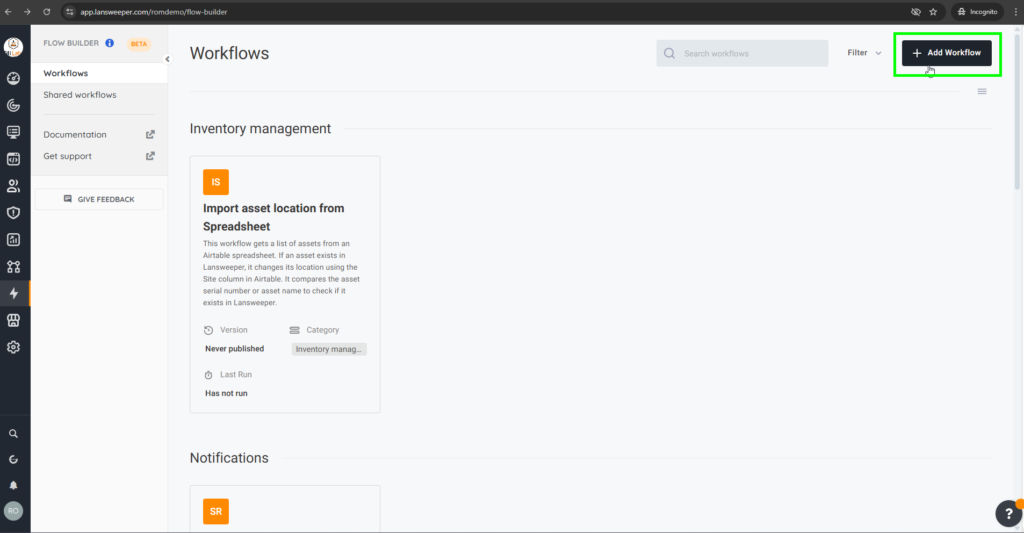
- Go to Flow Builder

- Navigate to Workflows → + Add Workflow
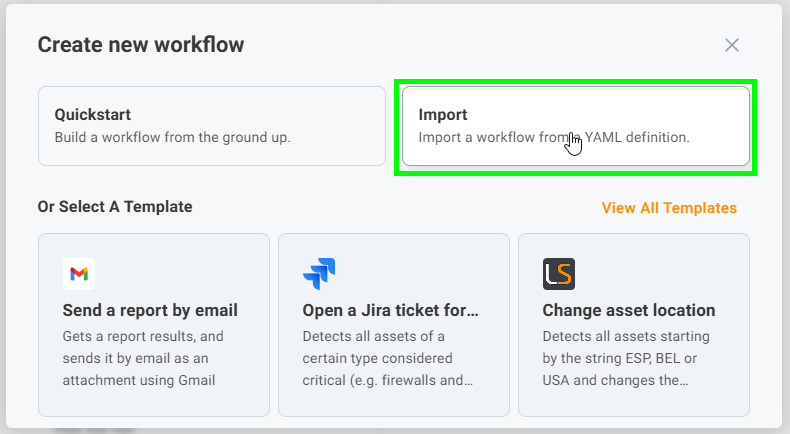
- If you want to just Import the workflow YAML File and skip the walkthrough: Choose ‘Import’ and upload the file
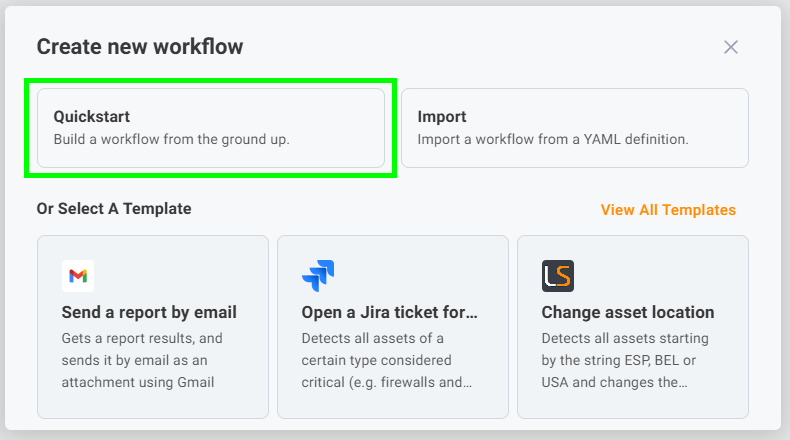
- If you want to create the workflow from scratch: Choose ‘Quickstart’ in order to make the workflow yourself
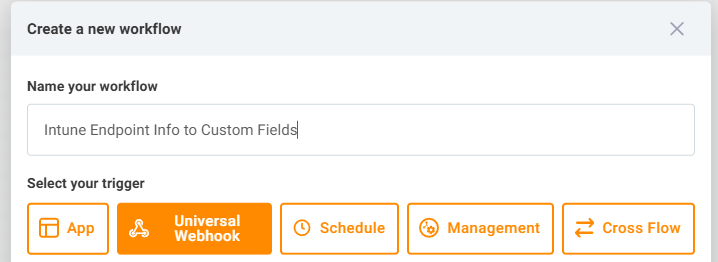
Name the Workflow and Add a Trigger
(This starts your flow when something (like a button or scheduler) sends a request to a special webhook URL that Lansweeper provides.)
- Name the workflow accordingly
- Under ‘Select your Trigger’ → select Webhook, or a schedule, whichever you prefer – I made a webhook. Leave all inputs empty (unless you plan to send test payloads).
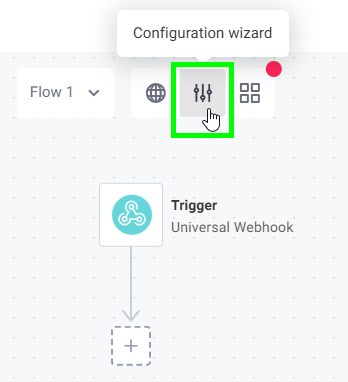
Configure the Connections
Click on the ‘Configuration Wizard’ button to add your connections
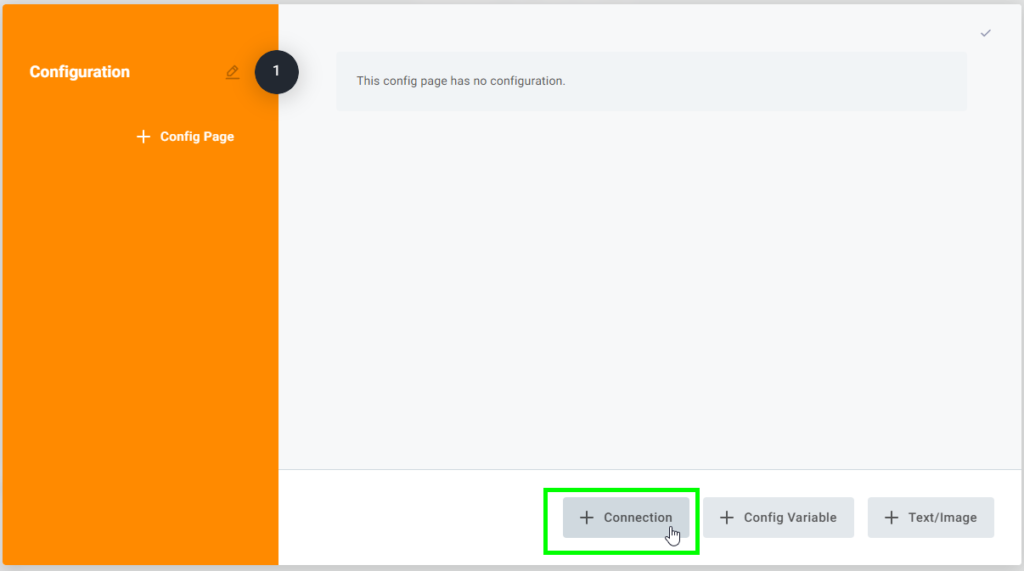
Add the Lansweeper Connection by searching for it in the filter

Leave everything as it is, and just press ‘Create’
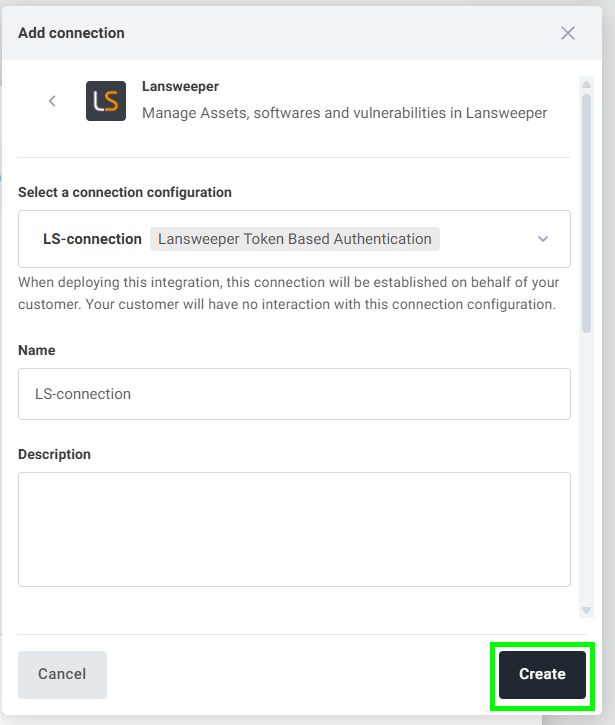
(Don’t forget to follow the prerequisite and set up access in Azure to allow the Intune Connector)
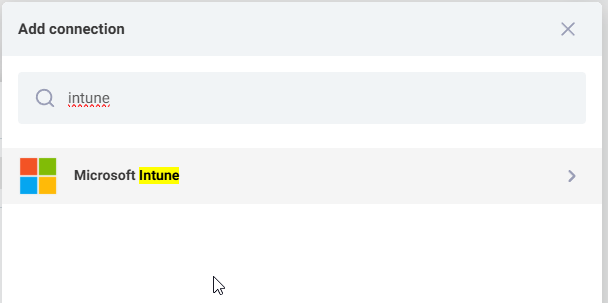
Add The ‘Microsoft Intune’ connector
Paste the Client ID and Client Secret that you generated in Azure and then click ‘Create’
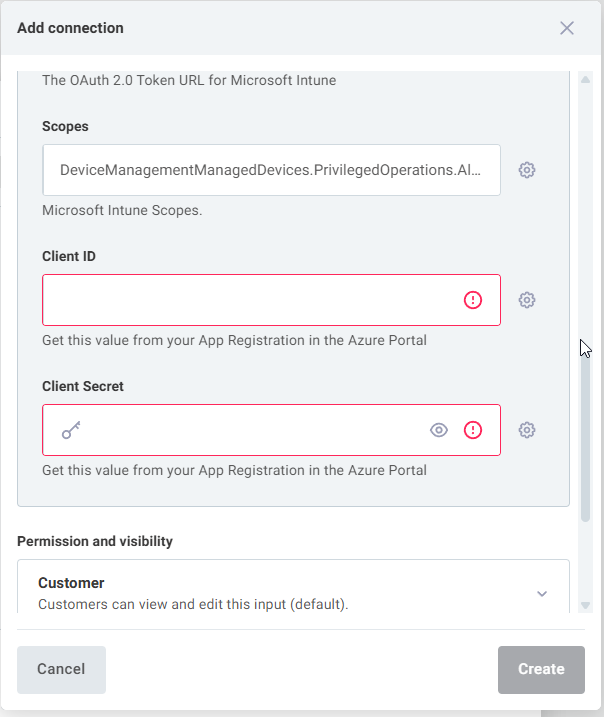
Note: The connection will throw an error at the bottom of the workflow, displayed as a red dot – you will need to click and authenticate the inTune connector to M365 by entering in M365 credentials.


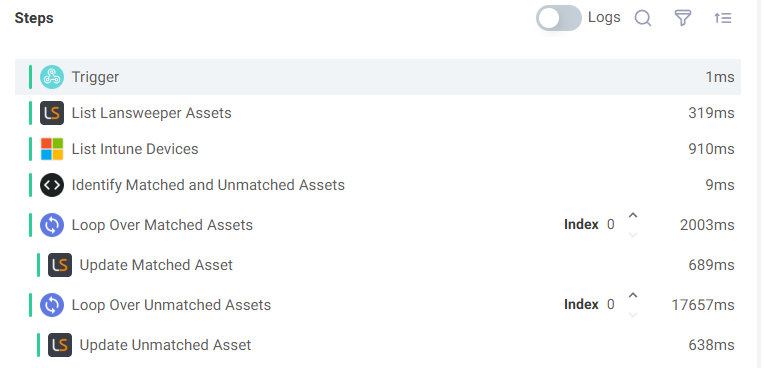
Add The Step – List Lansweeper Assets
This pulls a list of Windows devices from Lansweeper, including key identifiers like serial number, IP address, FQDN, and MAC address. These will be used to try and match with Intune devices.
- Add a new step → choose Lansweeper Connector → List Assets.
- Name the connector ‘List Lansweeper Assets’ (important for code block to work)


- Set the Connection to your Lansweeper Connection ‘LS-Connection’.
- Under Filter, choose ‘Edit’ and paste:
{
  "conjunction": "AND",
  "conditions": [
    {
      "path": "assetBasicInfo.type",
      "operator": "EQUAL",
      "value": "Windows"
    }
  ]
}- Add Additional Fields
- assetCustom.serialNumber
- assetCustom.dnsName
- assetBasicInfo.mac
- assetBasicInfo.fqdn
- assetBasicInfo.ipAddress

- Run The Flow to Test and Collect Data for the next steps

List Intune Managed Devices
This pulls all devices that are currently enrolled and managed in Microsoft Intune. These will be compared to your Lansweeper assets.
- Add a new step → Microsoft Intune → List Managed Devices.
- Name it: List Intune Devices.
- Set the connection to Microsoft Intune Connection.
- Leave all other inputs blank.

- Run The Flow to Test and Collect Data for the next steps

Run Code Block to Match Devices
This code compares serial numbers and device names from both systems and builds a list of matched devices. It adds helpful info like compliance status and sync time.
- Add a new step → Code → Code Block.

- Name it ‘Identify Matched and Unmatched Assets’.

- Configure > Code > Edit: Paste the JavaScript code:
Code Block
module.exports = async (, stepResults) =>  Lansweeper assets and $ Intune devices.`);

  // Create lookup maps for Intune devices (Serial Number & Device Name)
  const intuneSerialMap = new Map();
  const intuneNameMap = new Map();

  intuneDevices.forEach(device => );
    }
    if (name) );
    }
  });
   logger.info(`Created Intune lookup maps: $ serials, $ names.`);

  // Arrays to store results
  const matchedAssets = [];
  const unmatchedAssets = [];

  lansweeperAssets.forEach(asset =>

    // **Second priority: Match by Device Name** (only if serial didn't match)
    if (!matchedDevice && lsName && intuneNameMap.has(lsName))

    // **Categorize the asset**
    if (matchedDevice) );
    } else );
    }
  });

  logger.info(`Identified $ matched assets and $ unmatched assets.`);

  // Return both lists
  return ;
};
- This code matches Lansweeper assets to Intune devices by:
- Serial Number (first)
- Device Name (fallback)
- Preparing matched data for updating Lansweeper Custom Fields
- Run the Flow to Test and Collect Data for the next steps

Loop Over Matched Assets
For every matched device, it will repeat a set of steps — in our case, to update the corresponding asset in Lansweeper.
- Add a new step → Loop → Loop Over Items.

- Name the Step: Loop Over Matched Assets
- Set Items to ‘reference’: Identify Matched and Unmatched Assets.results.matched

- Run The Flow to Test and Collect Data for the next steps

Inside the Loop: Lansweeper Edit Asset
This updates each matched Lansweeper asset with Intune-specific info like whether it’s enrolled, when it last synced, and its compliance state.
- Inside the loop, add step → Lansweeper Connector → Edit Asset.

- Name It: Update Matched Asset.
- Set the Connection to your Lansweeper connection (LS-connection).
- Set Asset Key to ‘reference’: Loop Over Matched Assets.currentItem.key
- In Asset Custom Fields, add the following:
| Field Name | Type | Value |
|---|---|---|
| Intune_isEnrolled | value | Yes |
| Intune_lastSyncDateTime | reference | Loop Over Matched Assets.currentItem.lastSyncDateTime |
| Intune_complianceState | reference | Loop Over Matched Assets.currentItem.complianceState |
| Intune_ID | reference | Loop Over Matched Assets.currentItem.assetCustom.Intune_ID |
| Intune_azureADDeviceId | reference | Loop Over Matched Assets.currentItem.azureADDeviceId |
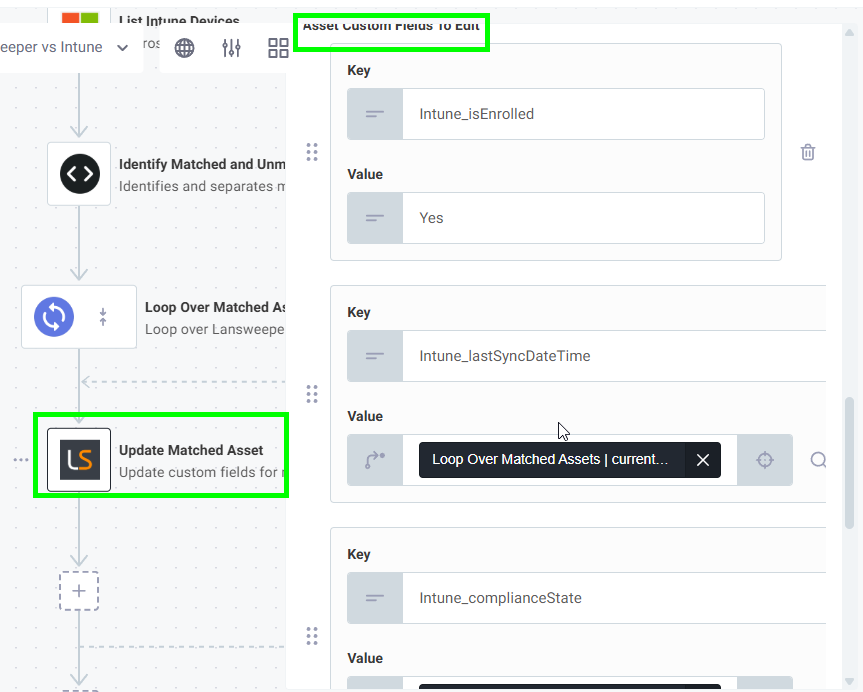
- Run The Flow to Test and Collect Data for the next steps
Loop Over Unmatched Devices
For every unmatched device, it will repeat a set of steps — in our case, to update the corresponding asset in Lansweeper.
- Add a new step → Loop → Loop Over Items.
- Name: Loop Over Unmatched Assets.
- Set Items to ‘reference’: Identify Matched and Unmatched Assets.results.unmatched.
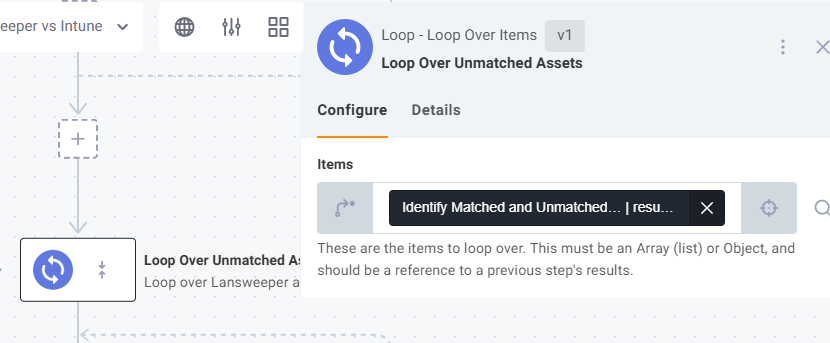
- Run the Flow to Test and Collect Data for the next steps
Inside the Second Loop: Lansweeper Edit Asset
This updates each matched Lansweeper asset with Intune-specific info like whether it’s enrolled, when it last synced, and its compliance state.
- Inside the loop, add step → Lansweeper Connector → Edit Asset.
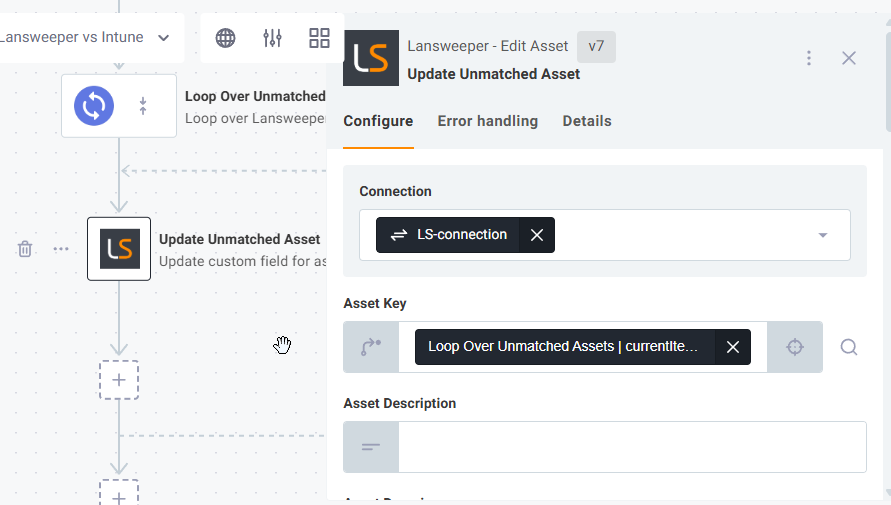
- Name If: Update Unmatched Asset.
- Set the Connection to your Lansweeper connection (LS-connection).
- Set Asset Key to ‘reference’: Loop Over Unmatched Assets.currentItem.key
- In Asset Custom Fields, add the following:
| Field Name | Type | Value |
|---|---|---|
| Intune_isEnrolled | value | No |
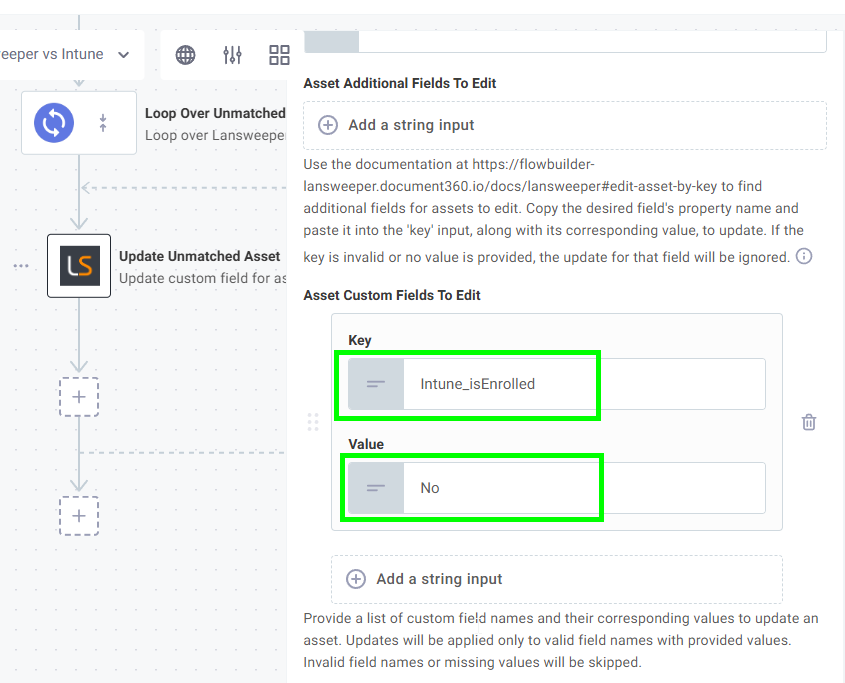
- Run the Flow to Test and Collect Data
Deploy and Test
- Save the flow.
- Trigger it using the Webhook URL/Schedule from Step 1 (or run manually from the UI).
- Confirm matched assets in Lansweeper are updated with Intune fields.

Pro Tip: Testing Suggestions
Add temporary log steps (like Log Message) between steps to see data mid-flow.
Technical Reference
Code Block Walkthrough: “Identify Matched and Unmatched Assets”
Purpose: This code acts like a fast sorter, comparing Lansweeper computers to Intune devices and creating two lists: those found in Intune (“Matched”) and those not found (“Unmatched”).
- Get the Lists:
- Explanation: The first thing the code does is grab the lists of computers/devices that were fetched in the previous steps. It expects the Lansweeper assets from the step named listLansweeperAssets and the Intune devices from the step named listIntuneDevices.
- Code:
// Retrieve Lansweeper assets and Intune devices
const lansweeperAssets = stepResults.listLansweeperAssets.results.items || [];
const intuneDevices = stepResults.listIntuneDevices.results.value || [];

logger.info(`Processing ${lansweeperAssets.length} Lansweeper assets and ${intuneDevices.length} Intune devices.`);- Prepare for Fast Searching (Create Indexes):
- Explanation: To avoid slowly searching the whole Intune list for every Lansweeper computer, the code builds quick lookup indexes (called Maps) for the Intune devices. One index uses the device’s serial number as the key, and the other uses the device name. It also cleans up the serial numbers and names (lowercase, removes spaces, ignores common useless entries like “defaultstring”) before adding them to the indexes. This makes matching faster and more reliable. It also ensures important Intune details (like id, lastSyncDateTime, complianceState) are stored with each entry in the index.
- Code:
// Create lookup maps for Intune devices (Serial Number & Device Name)
const intuneSerialMap = new Map();
const intuneNameMap = new Map();

intuneDevices.forEach(device => {
  const serial = device.serialNumber ? device.serialNumber.toLowerCase().trim() : "";
  const name = device.deviceName ? device.deviceName.toLowerCase().trim() : "";

  // Clean up serial number and add to Serial Map
  if (serial && serial !== "defaultstring" && serial !== "systemserialnumber") {
    intuneSerialMap.set(serial, {
      ...device, // Include all original Intune device details
      deviceId: device.id || "Unknown", // Ensure Intune Device ID is stored
      lastSyncDateTime: device.lastSyncDateTime || "N/A",
      complianceState: device.complianceState || "Unknown"
    });
  }
  // Add to Name Map
  if (name) {
    intuneNameMap.set(name, {
      ...device, // Include all original Intune device details
      deviceId: device.id || "Unknown",
      lastSyncDateTime: device.lastSyncDateTime || "N/A",
      complianceState: device.complianceState || "Unknown"
    });
  }
});
logger.info(`Created Intune lookup maps: ${intuneSerialMap.size} serials, ${intuneNameMap.size} names.`);- Prepare Output Lists:
- Explanation: The code sets up two empty lists where it will put the results: one for computers that are matched and one for those that are unmatched.
- Code:
// Arrays to store results
const matchedAssets = [];
const unmatchedAssets = [];- Check Each Lansweeper Computer (Loop):
- Explanation: The code now starts looping through each computer record it received from Lansweeper. For each one, it will perform the matching logic.
- Code:
lansweeperAssets.forEach(asset => {
  // Inside this loop, we process one Lansweeper asset at a time
  const lsSerial = asset.assetCustom?.serialNumber ? asset.assetCustom.serialNumber.toLowerCase().trim() : "";
  const lsName = asset.assetBasicInfo?.name ? asset.assetBasicInfo.name.toLowerCase().trim() : "";
  let matchedDevice = null; // Variable to store the matching Intune device, if found
let matchMethod = ""; // Variable to store how we matched it- Try Matching (Serial Number First):
- Explanation: It first cleans up the Lansweeper computer’s serial number, just like it did for Intune’s. Then, it uses the fast “Serial Number Index” (intuneSerialMap) to instantly check if this serial number exists in Intune. If it finds a match, it stores the details of the matched Intune device and notes that the match was made using the “Serial Number”.
- Code:
  // **First priority: Match by Serial Number**
  if (lsSerial && lsSerial !== "defaultstring" && lsSerial !== "systemserialnumber" && intuneSerialMap.has(lsSerial)) {
    matchedDevice = intuneSerialMap.get(lsSerial); // Get the Intune device details from the map
    matchMethod = "Serial Number";
}- Try Matching (Device Name Second):
- Explanation: If no match was found using the serial number (matchedDevice is still empty), the code tries the second method. It cleans up the Lansweeper computer’s name and uses the fast “Device Name Index” (intuneNameMap) to check if the name exists in Intune. If it finds a match this way, it stores the Intune device details and notes the match was by “Device Name”.
- Code:
// **Second priority: Match by Device Name** (only if serial didn't match)
  if (!matchedDevice && lsName && intuneNameMap.has(lsName)) {
    matchedDevice = intuneNameMap.get(lsName); // Get the Intune device details from the map
    matchMethod = "Device Name";
}- Categorize the Asset (Matched or Unmatched):
- Explanation: Now the code checks if matchedDevice contains anything.
- If YES (we found a match either by serial or name): It adds the Lansweeper computer’s details, along with the important Intune details gathered from the matchedDevice object, to the matchedAssets list.
- If NO (no match was found by either method): It adds the Lansweeper computer’s details to the unmatchedAssets list.
- Code:
  // **Categorize the asset**
  if (matchedDevice) {
    // Add to matched list with combined data
    matchedAssets.push({
      key: asset.key, // Lansweeper asset key (needed for updating)
      matchedOn: matchMethod, // Indicate how we matched
      assetBasicInfo: asset.assetBasicInfo, // Keep original LS details
      assetCustom: asset.assetCustom, // Keep original LS details
      // Add specific Intune details needed for the update step
      intune_deviceId: matchedDevice.deviceId,
      intune_lastSyncDateTime: matchedDevice.lastSyncDateTime,
      intune_complianceState: matchedDevice.complianceState,
      intune_azureADDeviceId: matchedDevice.azureADDeviceId // Add Azure AD ID if available
      // Add other relevant Intune fields if needed
    });
  } else {
    // Add to unmatched list (only need Lansweeper key usually)
    unmatchedAssets.push({
      key: asset.key, // Lansweeper asset key is essential
      assetBasicInfo: asset.assetBasicInfo, // Include if needed later
      assetCustom: asset.assetCustom // Include if needed later
    });
  }
}); // End of the loop processing each Lansweeper asset- Hand Over the Results:
- Explanation: Finally, after checking all Lansweeper computers, the code reports how many matched and unmatched assets it found. It then packages the two lists (matchedAssets and unmatchedAssets) into a result object that the following steps in the Prismatic flow can easily access (using references like identifyMatchedAndUnmatchedAssets.results.matched).
- Code:
logger.info(`Identified ${matchedAssets.length} matched assets and ${unmatchedAssets.length} unmatched assets.`);

// Return both lists for subsequent steps to use
return { matched: matchedAssets, unmatched: unmatchedAssets };

Ready to get started?
You’ll be up and running in no time.
Explore all our features, free for 14 days.